
Upscayl AI UpscalerUpscayl AI

Waifu2x Image Upscaler Online

Upload Image

Add up to 5 images at once.

Click to upload image or drag image here

Supports JPG, PNG, WEBP, ZIP formats, max 20.00MB each

You can select or drag up to 5 images.

Upload files or paste

Try an example image

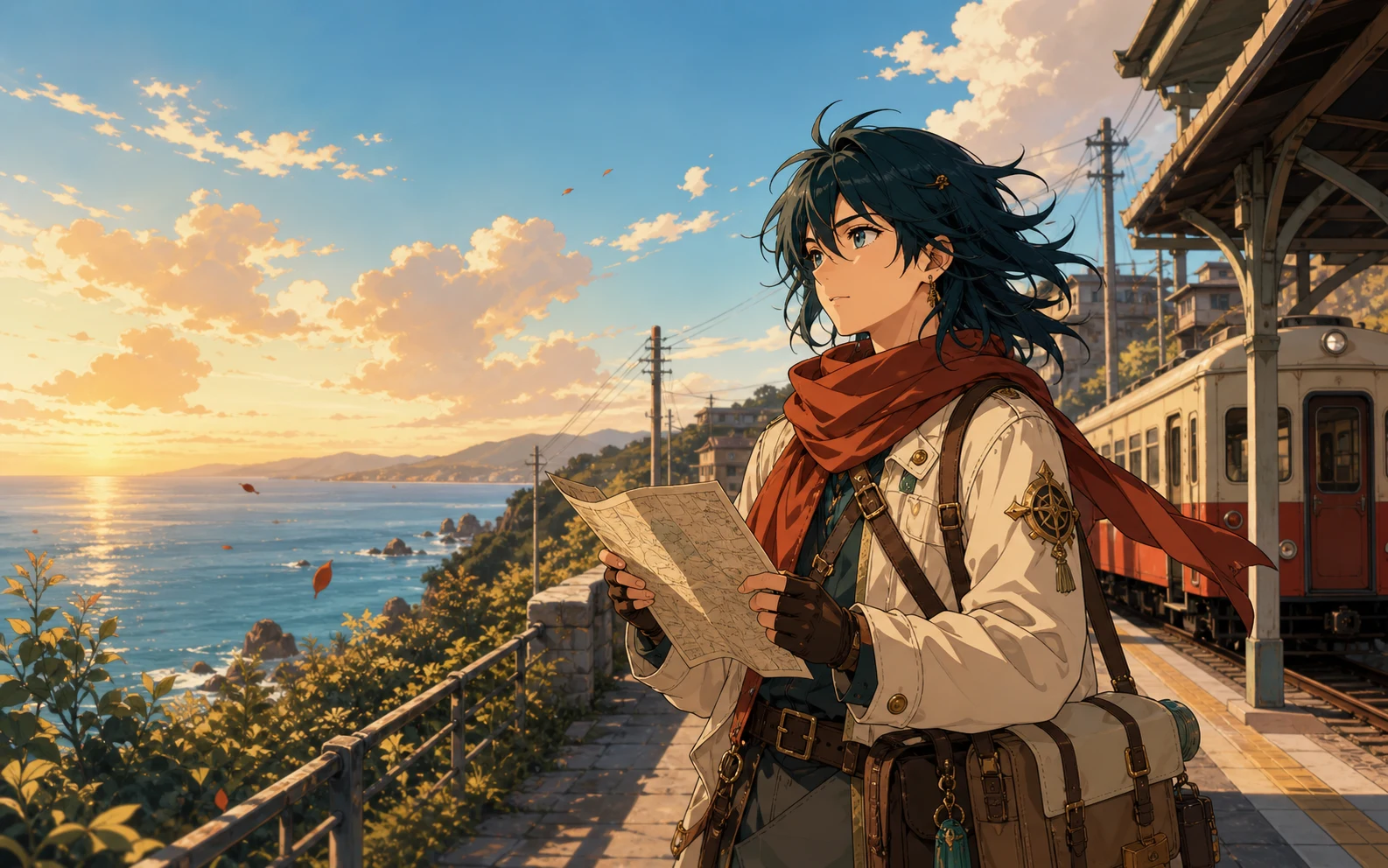
Anime illustration example for the Waifu2x online image upscaler

Image upscaling and cleanup

What Does Waifu2x Do?

Waifu2x enlarges low-resolution images and helps clean visible noise and compression artifacts. It works especially well with the lines, flat colors, gradients, and repeated patterns found in anime, manga, and digital art.

  1. 01

    Upscale Anime and Manga Images

    Turn a small anime image, manga panel, scan, or illustration into a larger file without relying on a basic stretched resize.

  2. 02

    Reduce JPEG Artifacts and Noise

    Clean up blocky compression, rough color transitions, and noise around outlines before those defects become more visible at a larger size.

  3. 03

    Keep Line Art and Colors Clear

    Preserve the visual separation between outlines, flat color areas, shading, gradients, text, and small illustrated details.

Start with the source image

Choose the Right Waifu2x Settings

The best settings depend on whether your image is clean artwork, a compressed screenshot, a manga scan, or a photo. Start conservatively and compare the result with the source.

Check your source image

  • Clean digital artwork

    The source already has sharp outlines, smooth gradients, and little visible compression.

  • Compressed anime screenshots

    JPEG blocks, ringing, color noise, and rough edges may become more obvious after enlargement.

  • Manga panels and scans

    Small lettering, screentones, cross-hatching, and thin ink lines can be sensitive to image cleanup.

  • Photos and realistic images

    Photographs contain natural texture that needs different treatment from flat illustrated color and line art.

Recommended starting point

  • Clean digital artwork

    Use Anime / Art mode and begin with 2× upscaling so fine lines and clean color areas receive limited reconstruction.

  • Compressed anime screenshots

    Use Anime / Art mode, then inspect faces, outlines, subtitles, and gradients at full size before downloading.

  • Manga panels and scans

    Start at 2× and compare text, halftone patterns, and panel borders closely with the original scan.

  • Photos and realistic images

    Choose Auto / Photo instead of Anime / Art when the source is a photograph or a realistic portrait.

Upload, set, compare

How to Use Waifu2x Online

Upload your source, choose the image type and scale, then compare sensitive details before saving the upscaled image.

  1. Step 1

    Upload Your Image

    Choose a JPG, PNG, or WebP anime image, manga scan, digital illustration, or photo from your device.

  2. Step 2

    Choose the Image Type and Scale

    Use Anime / Art for illustrations or Auto / Photo for photographs, then select the 2×, 4×, 6×, or 8× output available for your image.

  3. Step 3

    Compare and Download

    Check outlines, eyes, text, screentones, gradients, and repeated patterns at full size, then download the result in your preferred format.

Match the processing to the source

What Images Work Best with Waifu2x?

Waifu2x can process several image types, but each source has different details worth checking after upscaling.

Use Waifu2x Online
Anime artwork01

Clean Digital Illustrations

Upscale character art and finished illustrations while checking thin outlines, facial details, flat colors, and smooth shading.

Screenshots02

Compressed Anime Images

Enlarge screenshots and reposted images where JPEG artifacts, halos, or blocky gradients are visible around characters and backgrounds.

Manga03

Manga Panels and Scans

Process black-and-white or color manga while checking lettering, screentones, ink lines, cross-hatching, and panel borders.

Line art04

Sketches and Drawn Outlines

Create a larger working image from line art while watching for softened pencil texture, broken strokes, or overly smooth edges.

AI art05

AI-Generated Illustrations

Increase the resolution of generated artwork and inspect eyes, hands, accessories, text, and background geometry after processing.

Photos06

Photographic Images

Upscale photographs with Auto / Photo mode so skin, hair, fabric, and natural texture are not treated like anime line art.

Waifu2x settings and results

Waifu2x FAQ

Answers about Waifu2x image upscaling, noise reduction, anime and manga images, scale options, file formats, and batch processing.

What does Waifu2x do?

Waifu2x is an AI image upscaler that enlarges low-resolution images and helps reduce visible noise and compression artifacts. It is especially suited to anime, manga, line art, scans, and digital illustrations.

Can Waifu2x reduce JPEG artifacts?

It can reduce some blocky compression, ringing, color noise, and rough edges around lines. Results depend on the source, so compare text, faces, gradients, and small details with the original image.

When should I use noise reduction?

Noise reduction is most useful when an image contains visible grain, JPEG blocks, color speckles, or compression around outlines. Avoid aggressive cleanup on already-clean artwork because it can soften screentones, pencil texture, lettering, and thin lines.

Which upscaling size should I choose?

Start with 2× when you want a predictable enlargement with less reconstruction. Choose 4×, 6×, or 8× when you need more pixels, then inspect the output at full size because larger scales can make reconstruction changes easier to see.

Does Waifu2x work with manga scans?

Yes. You can upscale manga panels and scans, including black-and-white artwork. Check small text, screentones, cross-hatching, and thin panel lines because repeated patterns may change during processing.

Can Waifu2x upscale photos?

Yes. For photographs and realistic portraits, choose Auto / Photo instead of Anime / Art so natural skin, hair, fabric, and background texture receive photo-focused processing.

Will Waifu2x preserve text and screentones?

It can keep them clear, but no AI image upscaler can guarantee that every letter or repeated pattern will remain unchanged. Always compare captions, speech bubbles, halftones, and fine line work before publishing or printing.

Which image formats does Waifu2x support?

The online workspace accepts JPG, PNG, and WebP images. The available download formats are shown in the output controls before processing.

Can I batch upscale images with Waifu2x?

Yes. Add one image or a batch to the same queue, choose the settings for each image, and review every completed result before downloading it individually or with the batch.

Is Waifu2x free to use online?

You can start with the free usage available on Upscayl. The current credit cost, batch limit, and available scale options are displayed in the image upscaling workspace.

Upscale and inspect every detail

Use Waifu2x on Your Image

Upload an image, choose the right processing mode and scale, and compare the full-size result before downloading.

Use Waifu2x Online