
AI Product Photo Upscaler
Enlarge product photos for listings and ads.
Upload Image
Add up to 5 images at once.
Click to upload image or drag image here
Supports JPG, PNG, WEBP, ZIP formats, max 20.00MB each
You can select or drag up to 5 images.
Upload files or paste
PRODUCT PHOTO GALLERY
Product Photo Upscaling for Shoes, Beauty Products, and Accessories
Use a product image upscaler to enlarge the photos behind your store listings and campaigns. These scenes show three ways to use a larger source image.
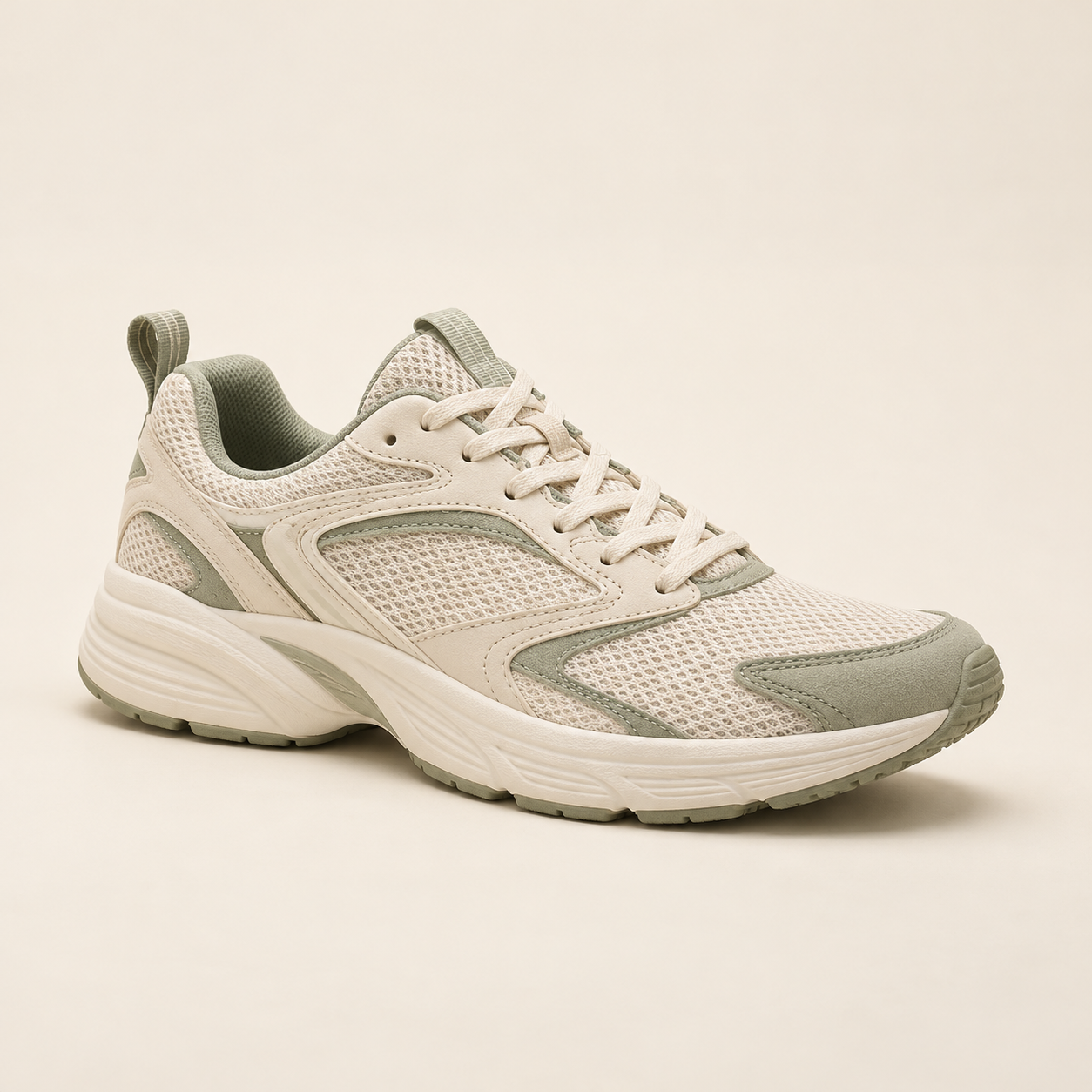
Footwear listings
Enlarge a shoe photo for a product detail gallery where shoppers can view the shape, material, and sole.
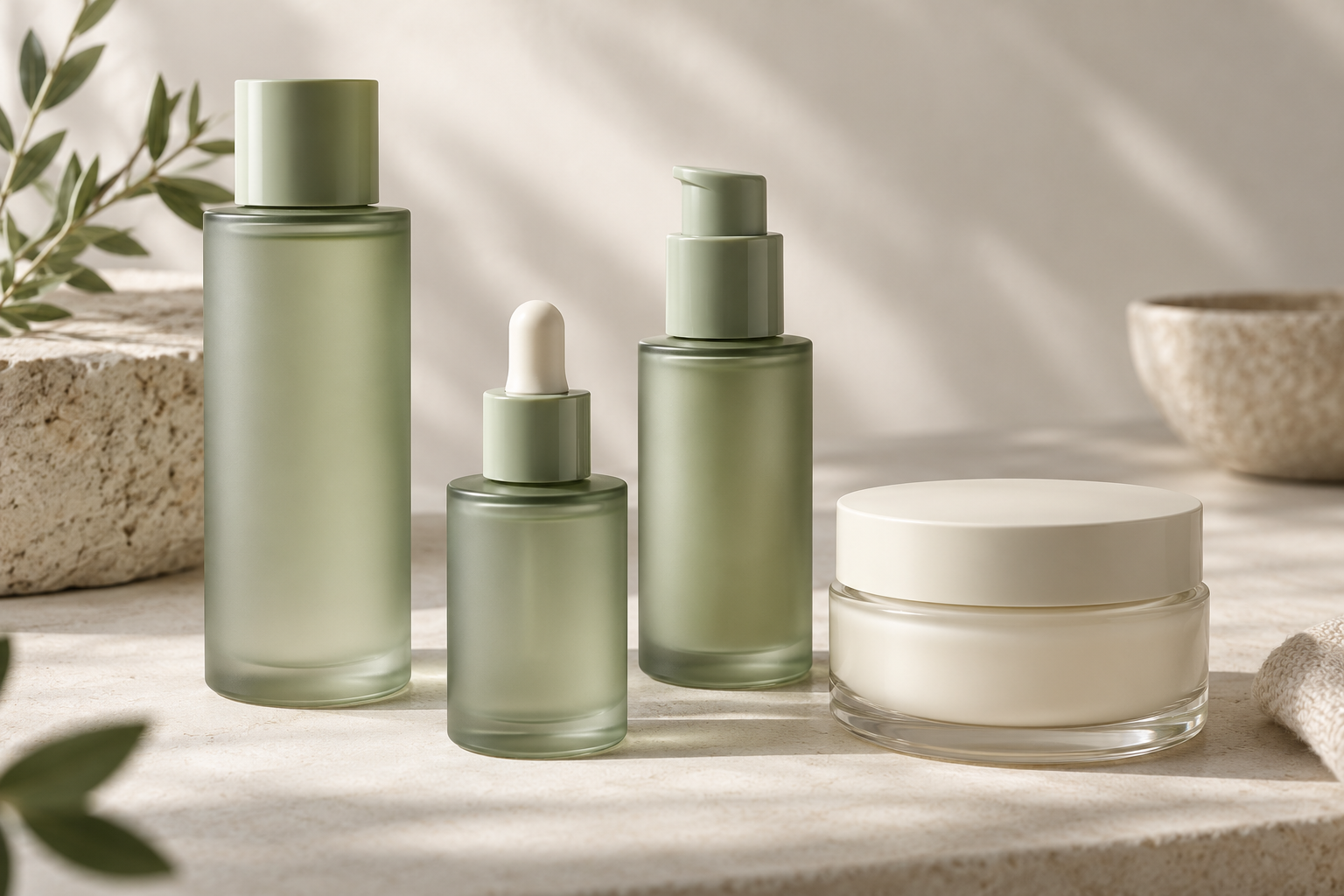
Beauty product catalogs
Prepare a larger bottle or jar image for a catalog page, collection layout, or product listing.
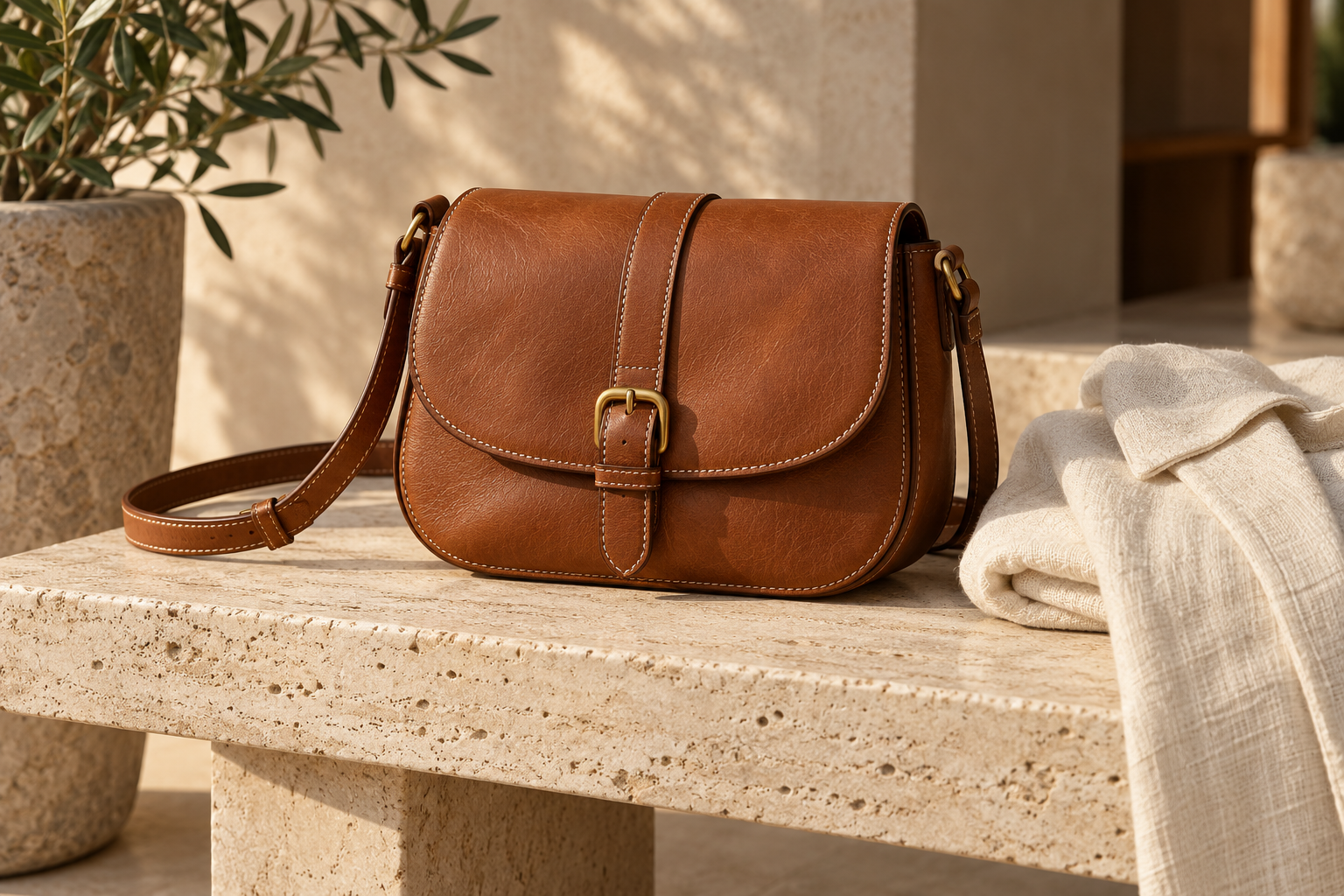
Accessories and campaigns
Use a styled accessories photo in a campaign layout, then make the final crop in your design editor.
AI-created scene illustrations. See the separate original-and-output comparison for a real 2× upscale.
Product Photo Upscaling: Before and After
See the original sneaker image beside its actual 2× output. Compare the mesh, stitching, and sole at the same display size, or open the full files.
Use the original sample in the workspace to try the same subject.
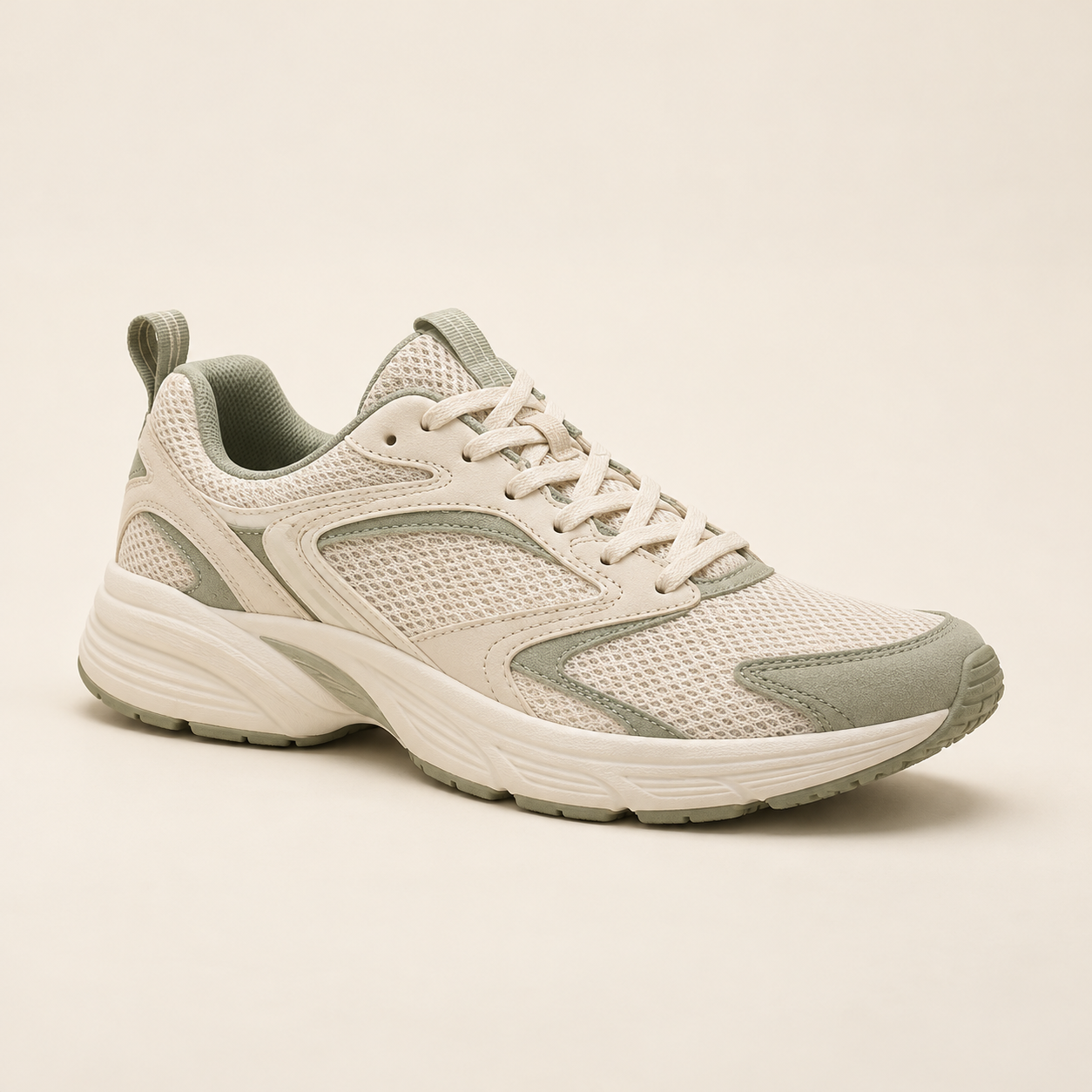 Original input
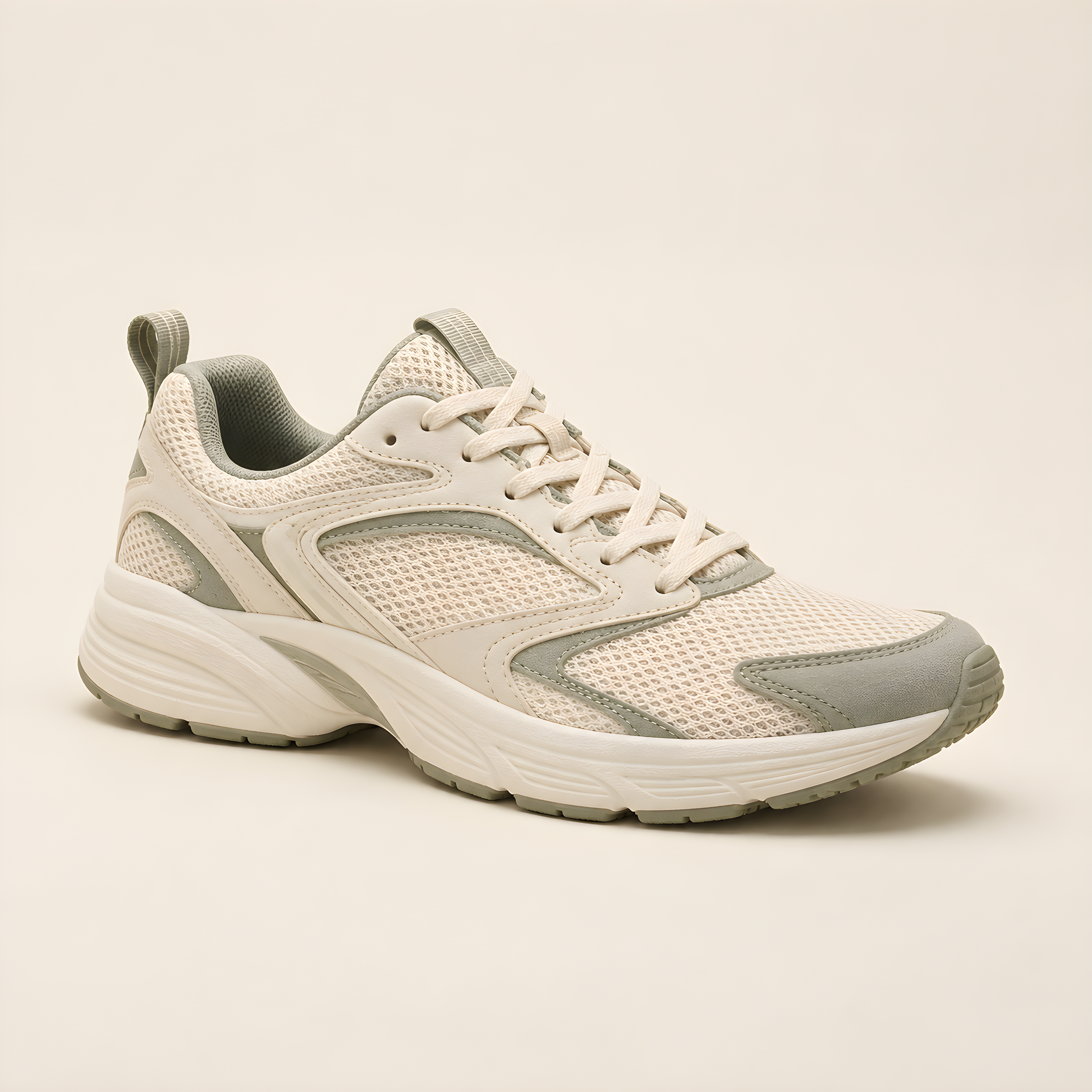 Actual output
AI-created demonstration source, actually processed with Real-ESRGAN at 2×, face enhancement off. Open the files to inspect detail. Results vary with the source and settings.
More pixels for your next placement
Increase Product Image Resolution for Larger Listings
An older catalog photo may be too small for a larger product gallery. Upscale the source image, then use the larger file in your store or design editor.
Give a small source more pixels
AI upscaling increases the pixel dimensions of your product image. A 2× enlargement doubles both its width and height.
Prepare an image for a larger layout
Use the enlarged file as a source for a product detail page or campaign. Crop it to your layout in your usual editor.
Compare before you download
View the original and the result together to see how the enlargement handles the product. Choose the file that represents it most faithfully.
How to Upscale Product Photos
Upload your product photo
Start with your largest original or an authorized supplier image. A camera export gives you a better source than a screenshot of a listing.
Choose an upscale factor
Select a factor in the workspace and start the upscale. The available settings and credit requirements appear before processing.
Download the larger image
Compare the result with your original, then download it. Use your editor to make the final crop for your listing, catalog, or ad.
Check Labels, Logos, and Product Details
Product accuracy matters as much as pixel size. Compare these details with the original before publishing an enlarged photo.
Lettering
Labels and logos
AI can change small letters and symbols. Use the original label artwork or a higher-resolution photograph when exact text is essential.
Materials
Textures and patterns
Look at stitching, fabric weave, grain, and repeated shapes. Added texture should still represent the product you sell.
Appearance
Edges and color
Compare outlines, reflections, and colors with the source. Upscaling does not replace color correction or a new shoot.
Explore other tools
Before you start
Product Photo Upscaler FAQs
Answers about ecommerce images, source quality, and product accuracy.
Can I upscale product images for an online store?
Yes. Upload your product photo, choose an upscale factor, and download the larger image. Match the final crop and dimensions to your store’s image requirements.
Will the product photo upscaler preserve text and logos exactly?
Exact preservation is not guaranteed. AI can change small letters, symbols, or repeated patterns. Compare them with the original; use a higher-resolution original or separate label artwork when accuracy is essential.
Does enlarging a photo remove its background?
Enlargement and background removal are different tasks. Use the background remover if you need a cutout, and inspect the resulting edges before publishing.
Can I enlarge a supplier image for a marketplace listing?
Yes, when you have permission to use the supplier image. Start with the largest file available, enlarge it, and prepare the final crop to match your marketplace’s requirements.
Will upscaling fix an out-of-focus product photo?
It may make some details easier to see, but severe blur or missing detail cannot be reliably recovered. A new photograph is often the better choice for an important listing.
Where can I check pricing and processing limits?
The shared workspace displays the available settings and account requirements. Check the pricing page for current plans and credits; review the selected mode before processing.
Start with one image
Upscale Your Product Photo
Give your next listing a larger source image. Upload a product photo and choose an upscale factor.
Upscale Your Product Photo