
Select the Exact Distraction
Paint over the person, sign, cable, text, prop, or small object that should disappear instead of cutting out the whole subject.
Remove objects from photos online
Remove object from photo without cropping the scene. Upload an image, brush over a person, text, wire, photobomber, or clutter, and prepare the area for AI cleanup.
Choose JPG, PNG, WebP, or ZIP files. Each image can be up to 20 MB, and you can add more photos after the queue is created.
Choose photosJPG, PNG, WebP, and ZIP supported · up to 20 MB per image
Try an example image
Choose any example to see the result in about 15 seconds.
Keep the photo, remove the distraction
An AI object remover erases a selected detail and rebuilds the space around it. Unlike a background remover, it keeps the main subject and the surrounding scene in the photo.
Paint over the person, sign, cable, text, prop, or small object that should disappear instead of cutting out the whole subject.
AI inpainting reads nearby texture, light, color, and scene structure to generate a replacement for the masked space.
Preserve the useful composition and remove the one visual detail that keeps the image from feeling clean or ready to publish.
Three simple steps
Upload a photo, mark the distraction with the brush, and review the selected area—no layers or clone stamp required.
Choose a clear JPG, PNG, or WebP image. A sharper source gives the editor more visual context around the unwanted object.
Cover the full distraction and include any connected shadow or reflection. Adjust the brush size for broad areas or narrow details.
Check edges and repeated textures. If an artifact remains, use a tighter mask and run another focused pass before downloading.
One brush for common distractions
Brush over the unwanted detail while keeping the main subject and the rest of the scene in place.
Remove a person from the background of a travel photo, street scene, event image, or portrait while keeping the main subject in place.
Erase distracting props, trash cans, furniture, wall marks, or loose items that pull attention away from the scene.
Clean up text overlays, timestamps, labels, or annotations on images you own and have permission to edit.
Brush over thin distractions in landscapes, interiors, architecture, and product setups without cropping the wider frame.
Remove small production distractions from product photos before using them in listings, ads, landing pages, or catalogs.
Clean visual clutter around a portrait or mark a small imperfection for a more focused personal or professional image.
Simple photo cleanup, built around you
Keep the framing you like, mark only what should disappear, and prepare the edit without learning a full photo editor.
Open the object removal workspace in your browser and begin with a JPG, PNG, or WebP image from your device.
Adjust the brush size and paint over the person, text, wire, prop, or small object you want to remove.
Target one unwanted detail without cropping away the wider scene or removing the entire background.
Use the responsive workspace with a mouse or touch input, wherever you normally review and clean up photos.
Illustrated cleanup scenarios
These original visual examples show the intended edit: keep the subject and composition in place while removing one selected distraction.
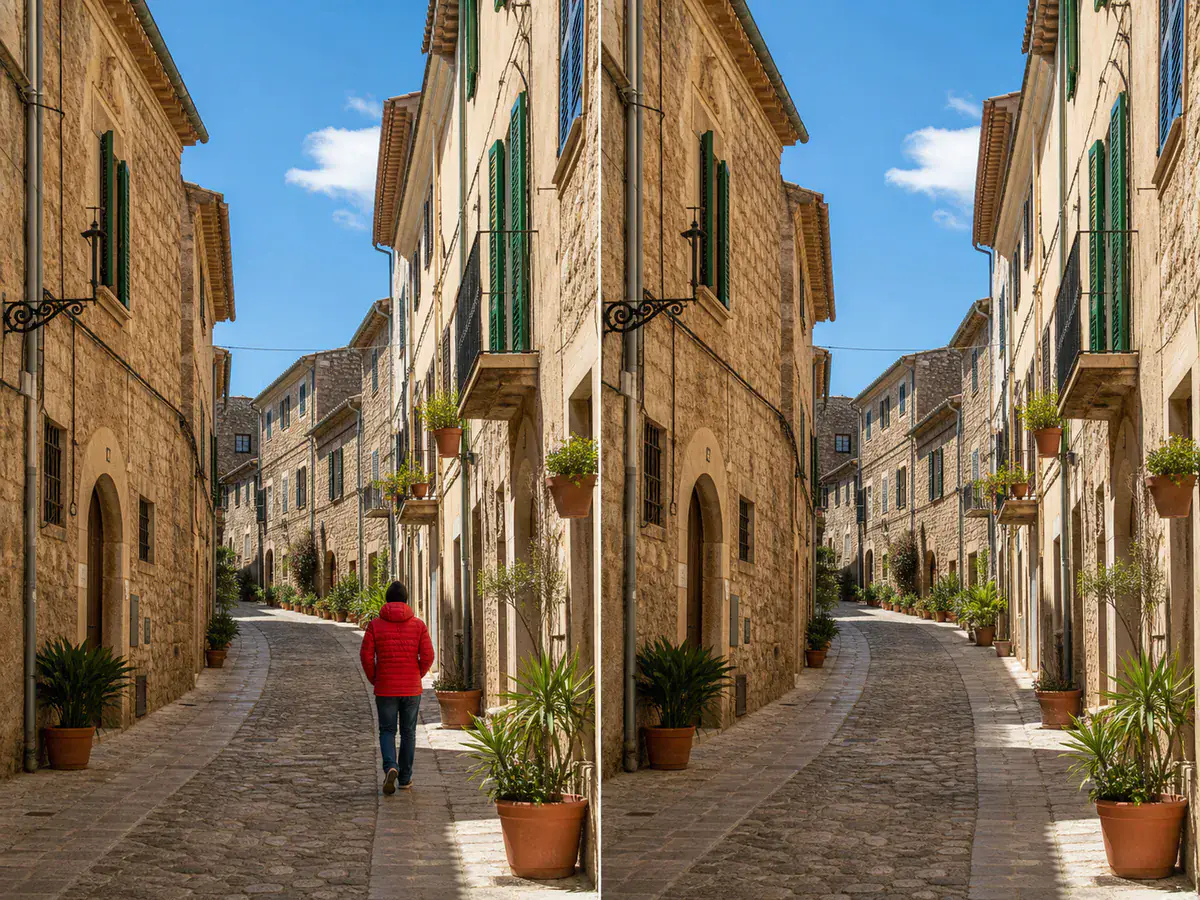 Illustrated people removal · Before / After
Keep the street, buildings, light, and original framing while removing one distracting passerby.
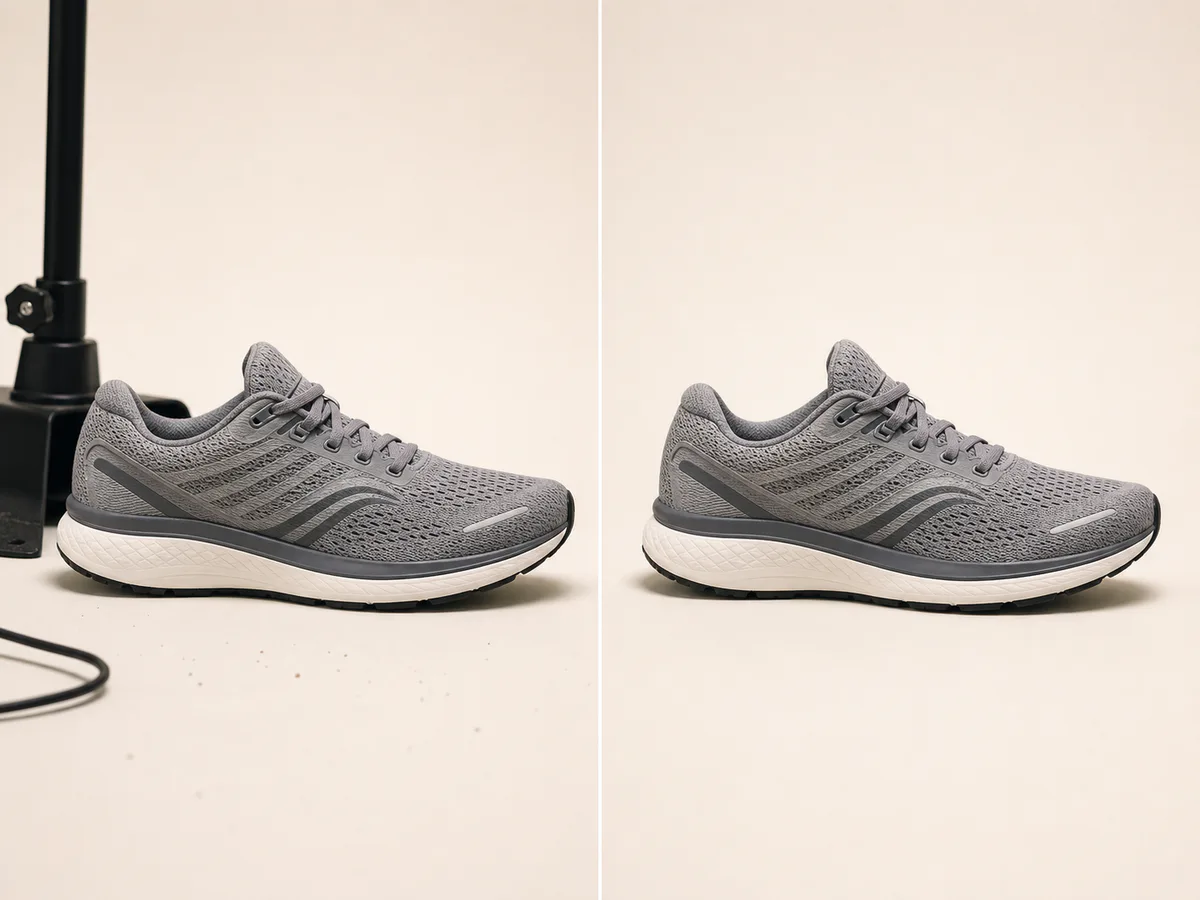 Illustrated product cleanup · Before / After
Remove the support stand, loose cable, and dust while keeping the shoe and its natural shadow unchanged.
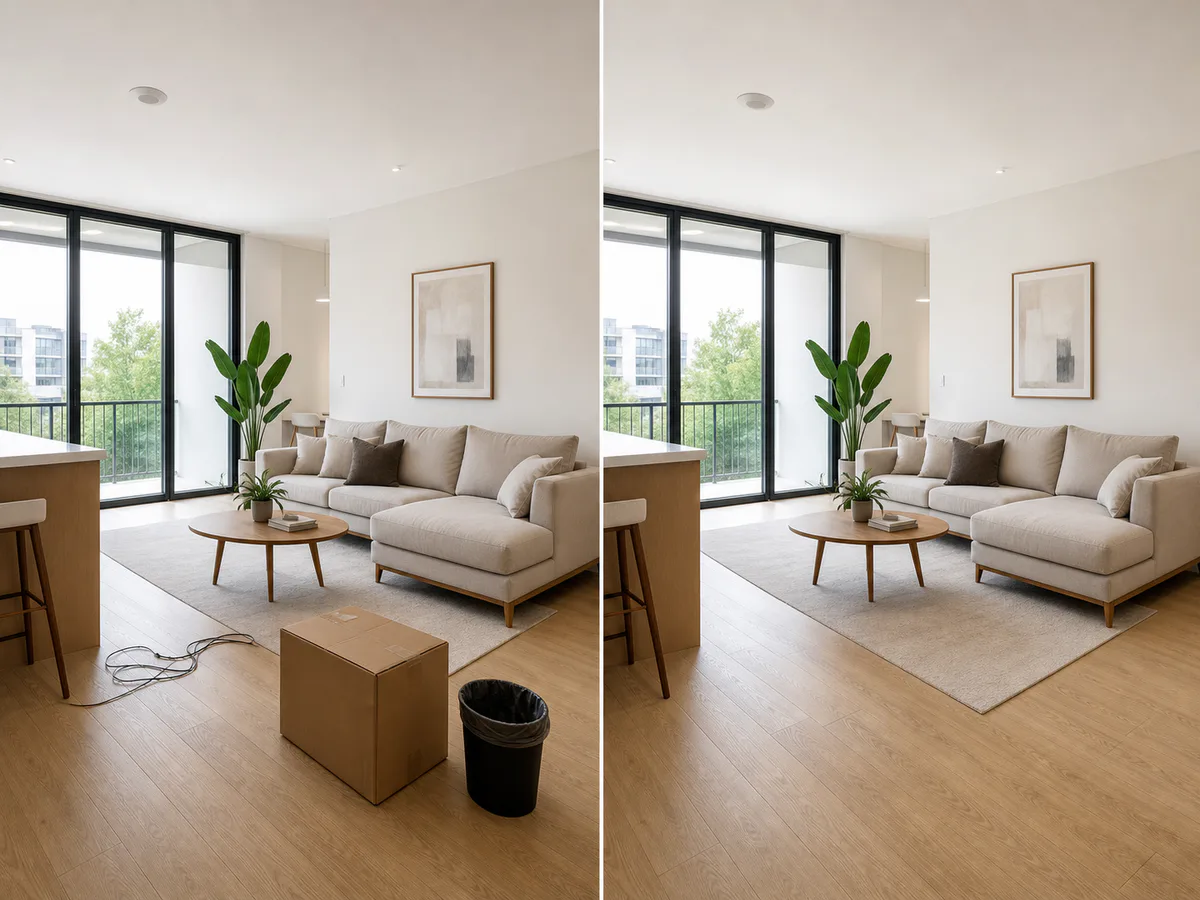 Illustrated room cleanup · Before / After
Clear a moving box, power cable, and bin while preserving the furniture, floor, and architecture.
Questions before you erase
Learn how to remove unwanted objects from photos, what to select, and how to prepare a cleaner result.
You can open the object remover and prepare an edit for free in your browser. Final processing limits and any account credit requirements will be shown in the editor when the object-removal API is connected.
Upload an image, adjust the brush size, and paint over the full unwanted object. Include a connected shadow when it should disappear too, then review the mask before starting the removal.
Yes. Mark the full person and leave the main subject unmasked. Results are usually easier to reconstruct when the person is surrounded by repeatable details such as sky, walls, pavement, grass, or water.
An object remover can rebuild the area behind text, captions, timestamps, and labels. Only edit images you own or have permission to modify, especially when a mark communicates ownership.
No. An object remover deletes a selected detail inside the photo and keeps the surrounding scene. A background remover separates the main subject from the entire background.
Cover the whole object, use a small margin around its edges, and include related shadows or reflections. For complex textures, try a tighter second pass over any remaining artifact.
Continue editing your image
Remove a full background, make a broader edit, or enhance the finished image with the tool built for that next step.
Remove the entire background and keep the main subject on a transparent canvas.
Remove a backgroundRemove visible text, logos, signatures, or date stamps from images you are authorized to edit.
Remove a watermarkImprove the clarity, sharpness, lighting, and overall presentation of the finished photo.
Enhance an imageOne distraction away from a cleaner photo
Upload a photo, adjust the brush, and mark the person, text, wire, or unwanted object you want to remove.
Remove an Object Free