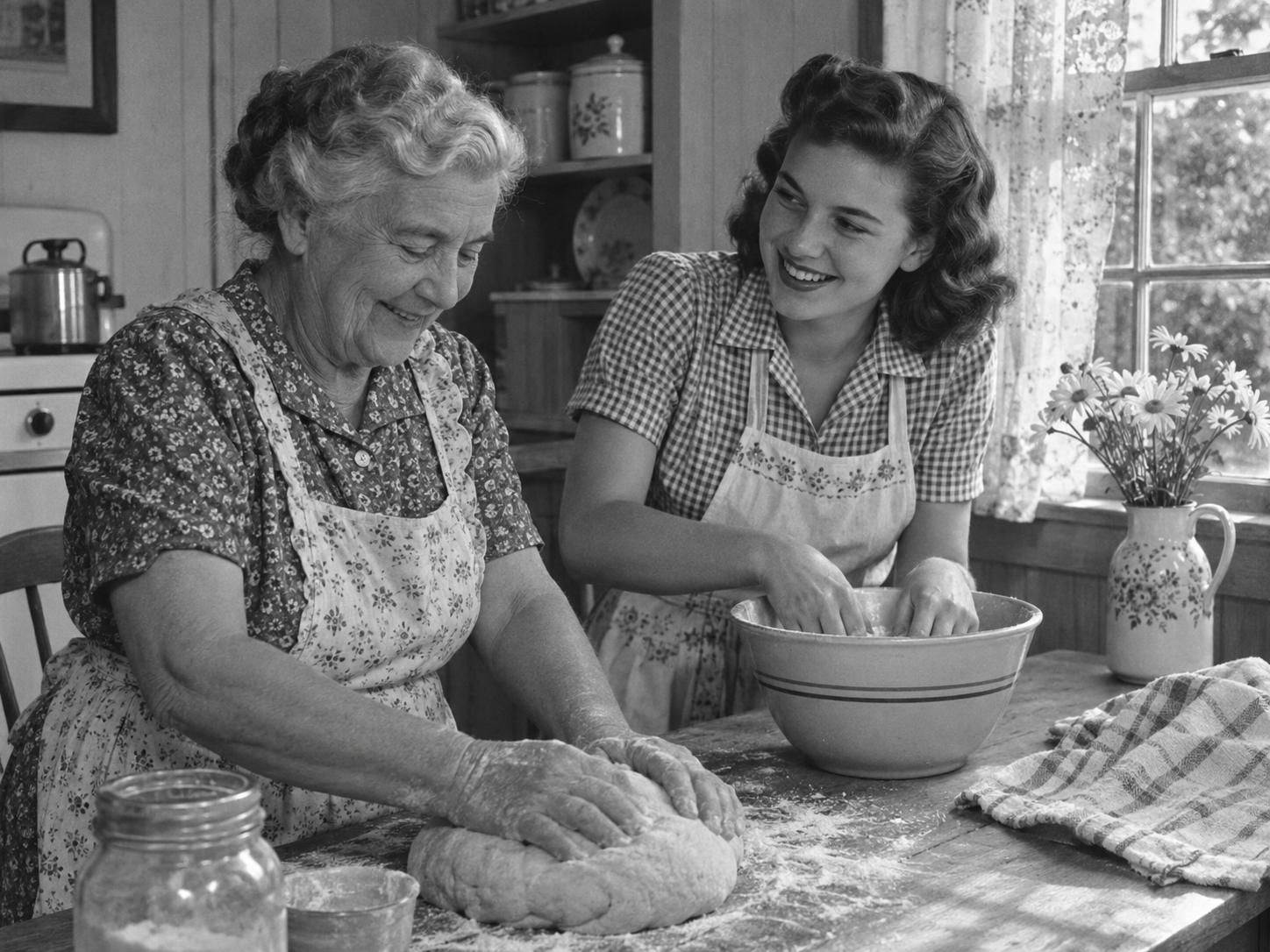
Family portraits
Add color to portraits, wedding photos, and family snapshots. Start with a clear scan so faces and clothing are easy to see.
Upload an old photo or scan and add color without installing software. Preview the result, then download your colorized photo.
Upload Image
Add up to 5 images at once.
Click to upload image or drag image here
Supports JPG, PNG, WEBP, ZIP formats, max 20.00MB each
You can select or drag up to 5 images.
Upload files or paste
Try an example image
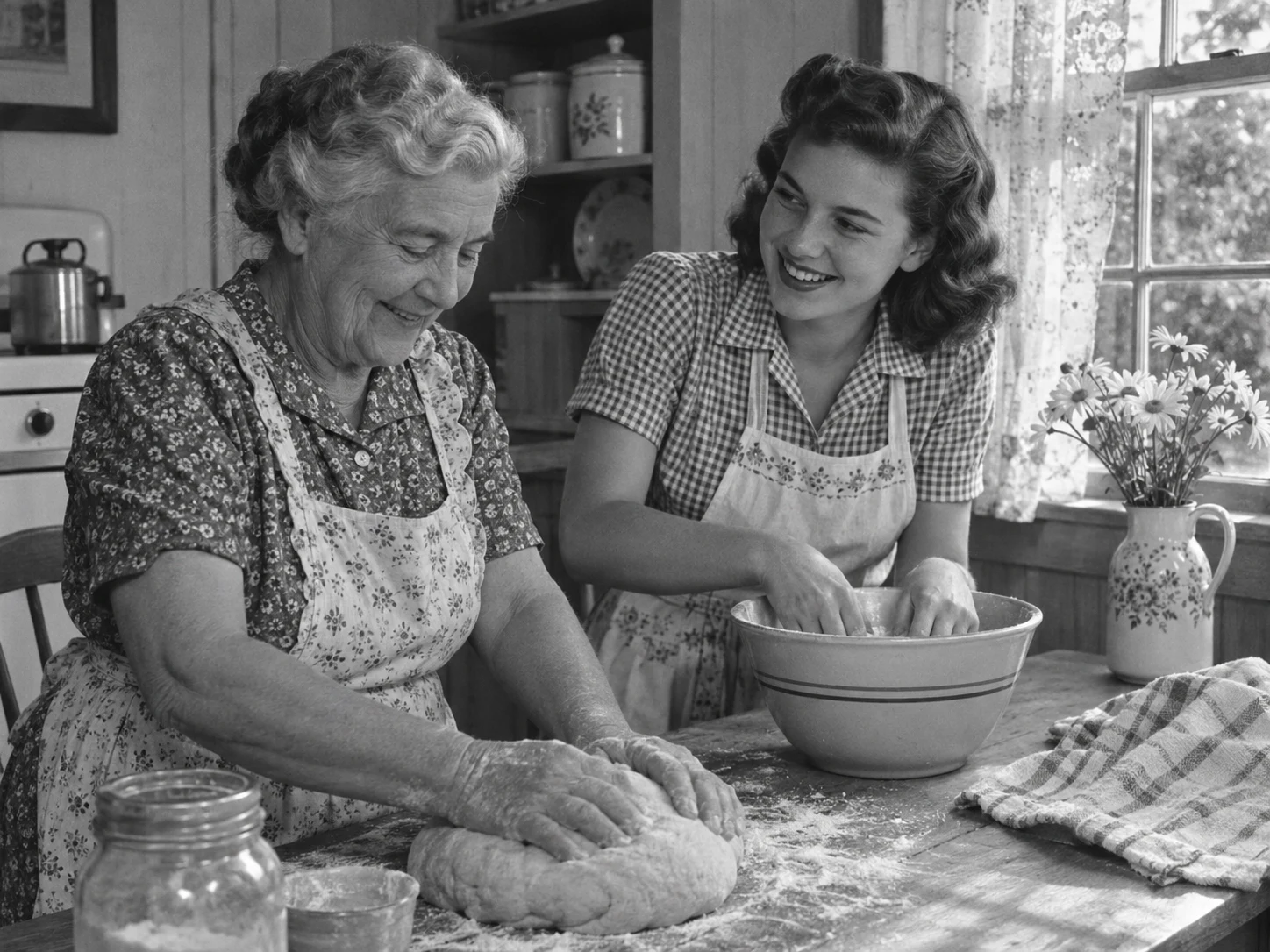
DeOldify adds color to black-and-white photos, from family portraits to street scenes. Use it online without setting up Google Colab or downloading model files.
Add color to portraits, wedding photos, and family snapshots. Start with a clear scan so faces and clothing are easy to see.
Colorize scanned photos of homes, gardens, streets, or family gatherings. See a familiar scene in color while keeping the original scan.
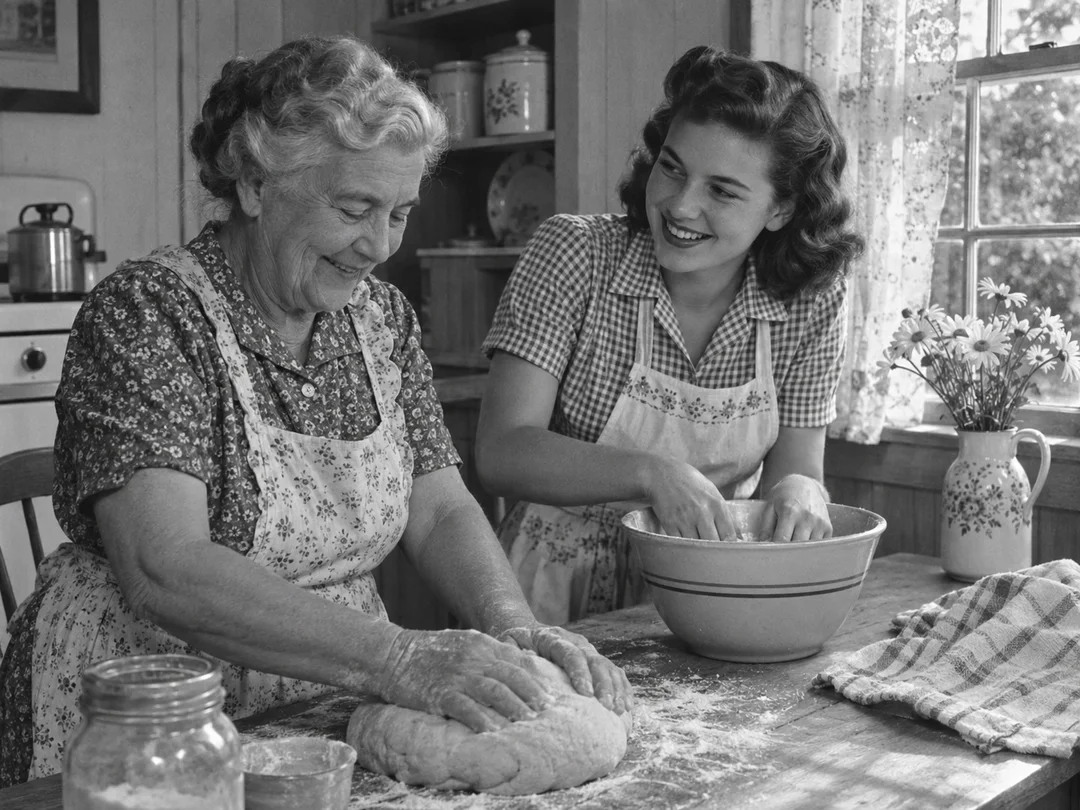
Original image
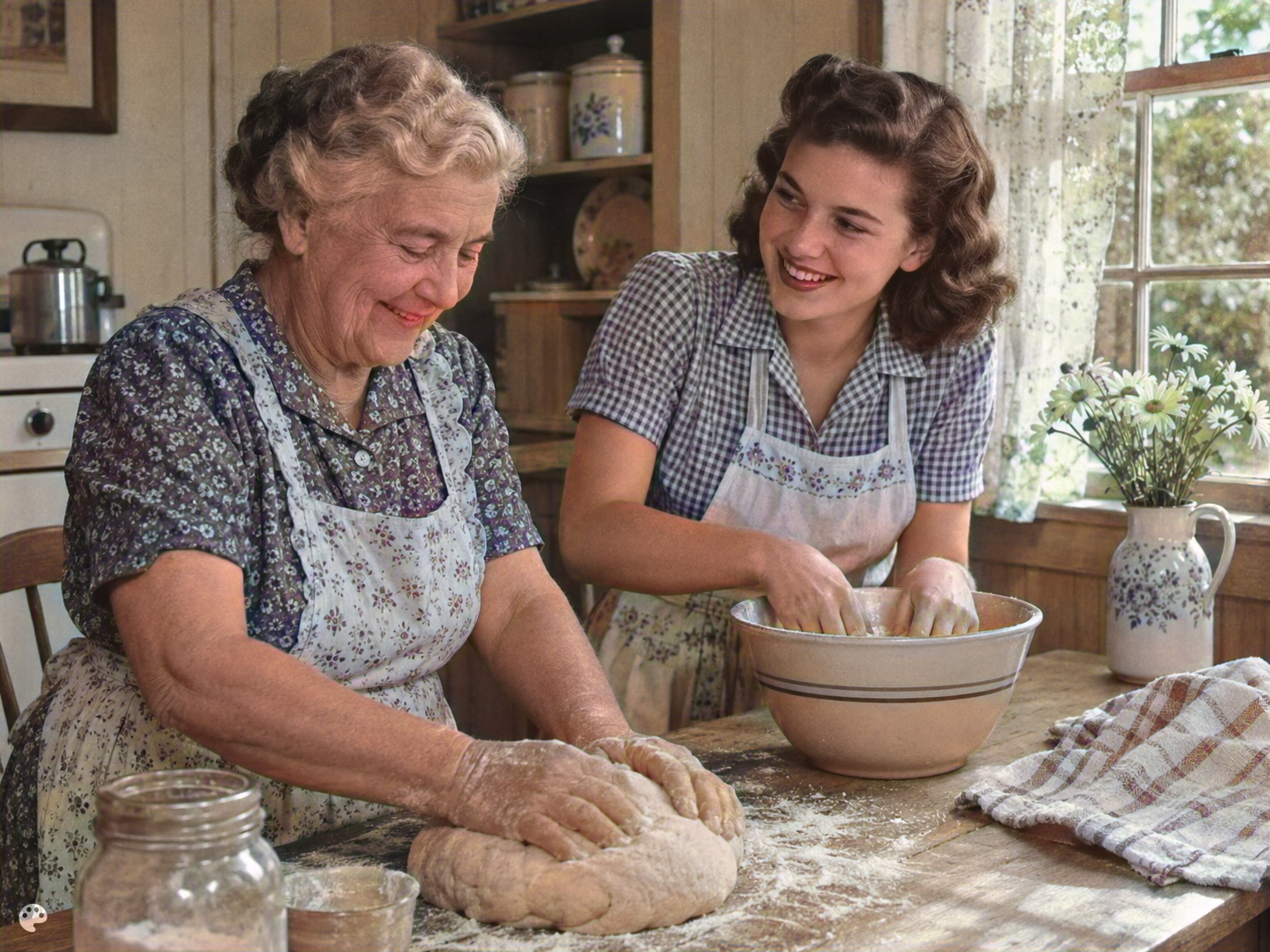
Actual output
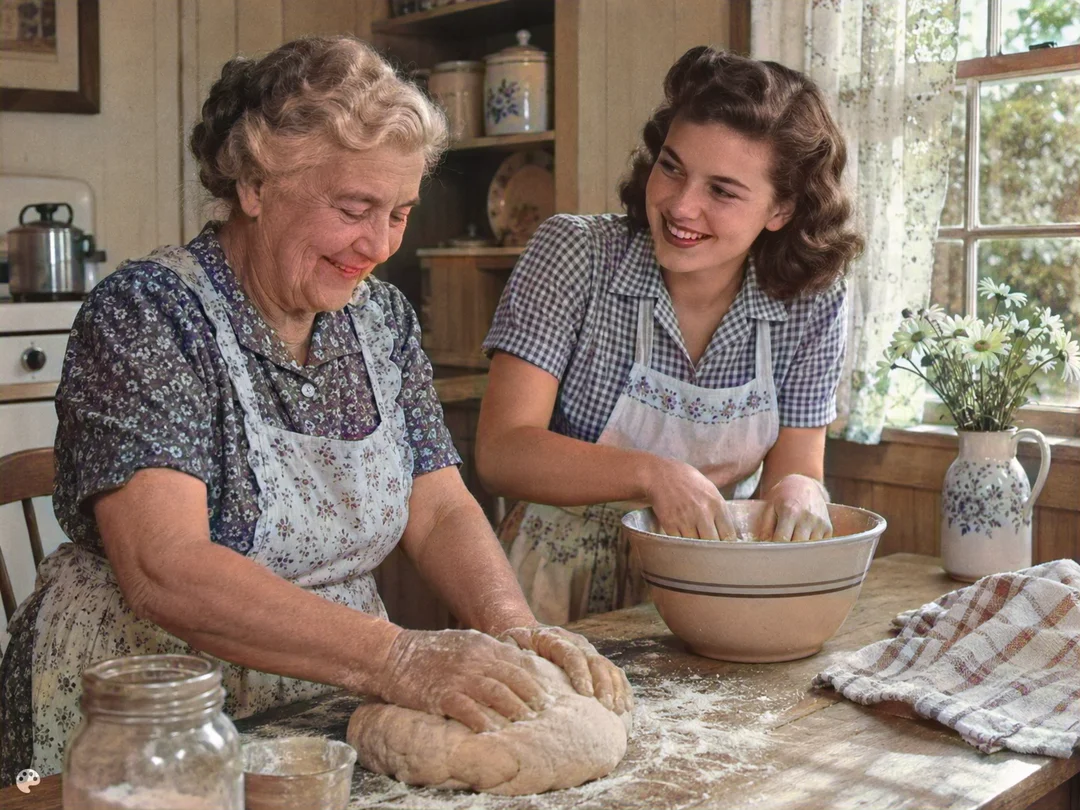
AI-generated demonstration source. The result was processed by this tool.
Crop out the scanner bed and choose a photo with clear subjects. If scratches obscure the image, repair them separately before colorizing.
Upload the photo, sign in, and check the credit cost. This workspace uses the Stable preset so you do not need to install a notebook or model files.
Compare faces, clothing, and background boundaries. Download the new image separately and preserve the source scan.
Make color versions of family photos for a reunion, birthday, or shared album. Keep the black-and-white and color copies together.
Add a colorized portrait to a family tree or history project. Label it as AI colorization and keep the original with its names and dates.
Colorize an old photo for a blog post or social media story. Use photos you own or have permission to edit.
Objects with similar gray values can have different real colors. Historical research, product matching, and documentary work should rely on independent evidence.
Colorization is not scratch removal, face reconstruction, or a promised resolution increase. Choose a dedicated restoration tool when the source needs those changes.
No. It generates plausible colors rather than recovering information that a black-and-white image does not contain.
This page uses DeOldify Stable with render factor 35. The model runs online, so you do not need to install it on your computer.
No. This page processes still photographs. Video colorization is not available in this workspace.
This online tool costs 3 credits per image and requires an account. The DeOldify source code is open source; running the model yourself is a separate option.
The model may not assign color confidently to every region. Try a cleaner source, inspect the result, and keep the original rather than assuming every output is suitable.
Use a restoration workflow for scratches or damaged areas.
Try making blurry areas of the colorized photo clearer.
Make a separate creative edit in the photo workspace.
Upscayl is an independent service using the open-source DeOldify model. We are not affiliated with DeOldify or MyHeritage.