
Upscale Images for Printing
Enlarge photos for posters and prints.
Upload Image
Add up to 5 images at once.
Click to upload image or drag image here
Supports JPG, PNG, WEBP, ZIP formats, max 20.00MB each
You can select or drag up to 5 images.
Upload files or paste
Print size
Advanced settings300 PPI
300 PPI is a starting example, not a requirement for every print. Follow your printer’s guidance.
Pixels = inches × PPI. For centimeters, divide by 2.54 first.
Target pixel dimensions
2,400 × 3,000 pixels
Image check
Upload a photo to compare its pixels with your print target.
FROM IMAGE TO PRINT
Enlarge Photos for Posters and Wall Art
Take a landscape from a digital file to a framed wall print or an unframed poster. Choose the display size, then calculate how many pixels your image needs.
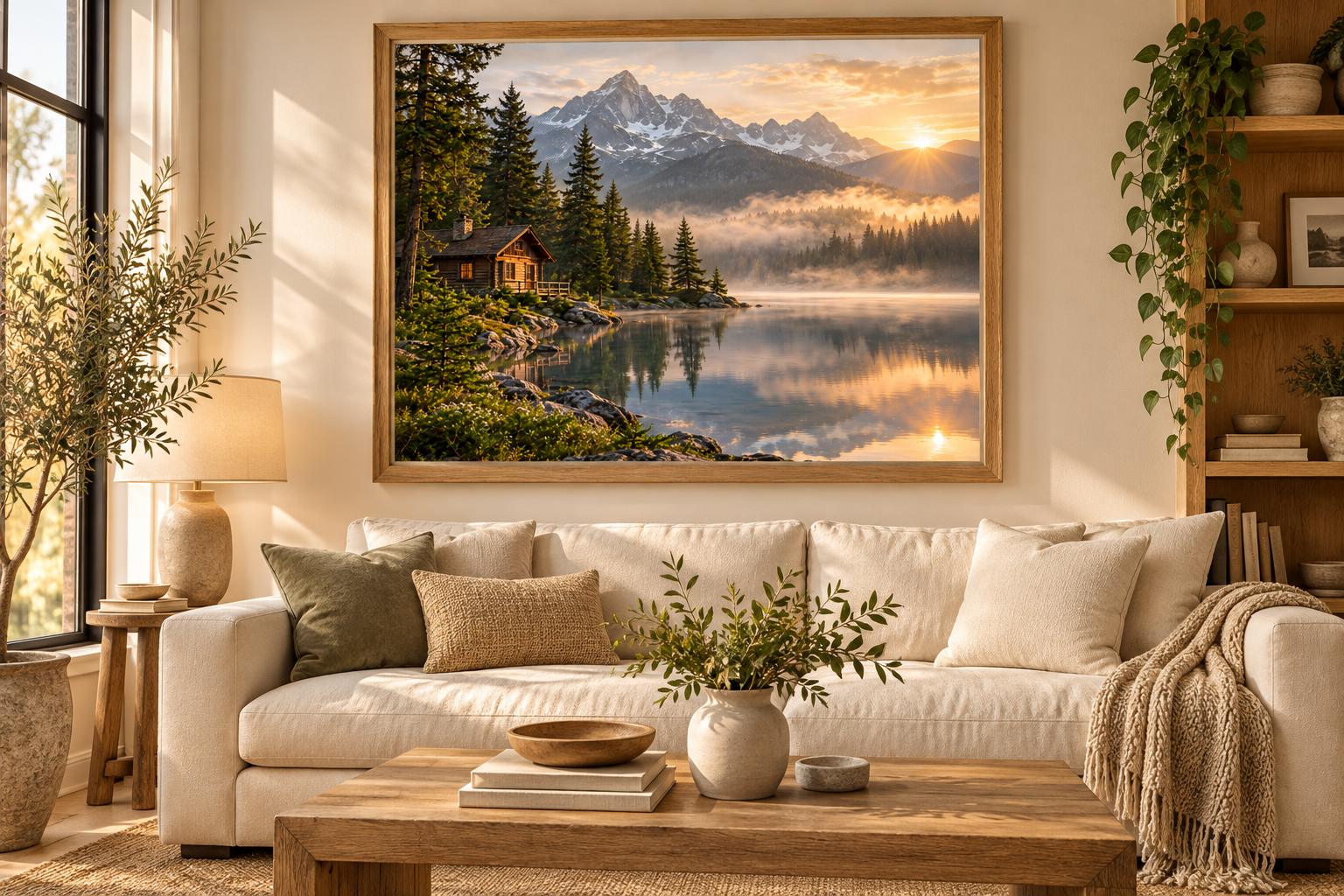
Framed wall art
Choose the frame size and the part of the photo you want to display. Leave room for borders if you want to keep the whole image.
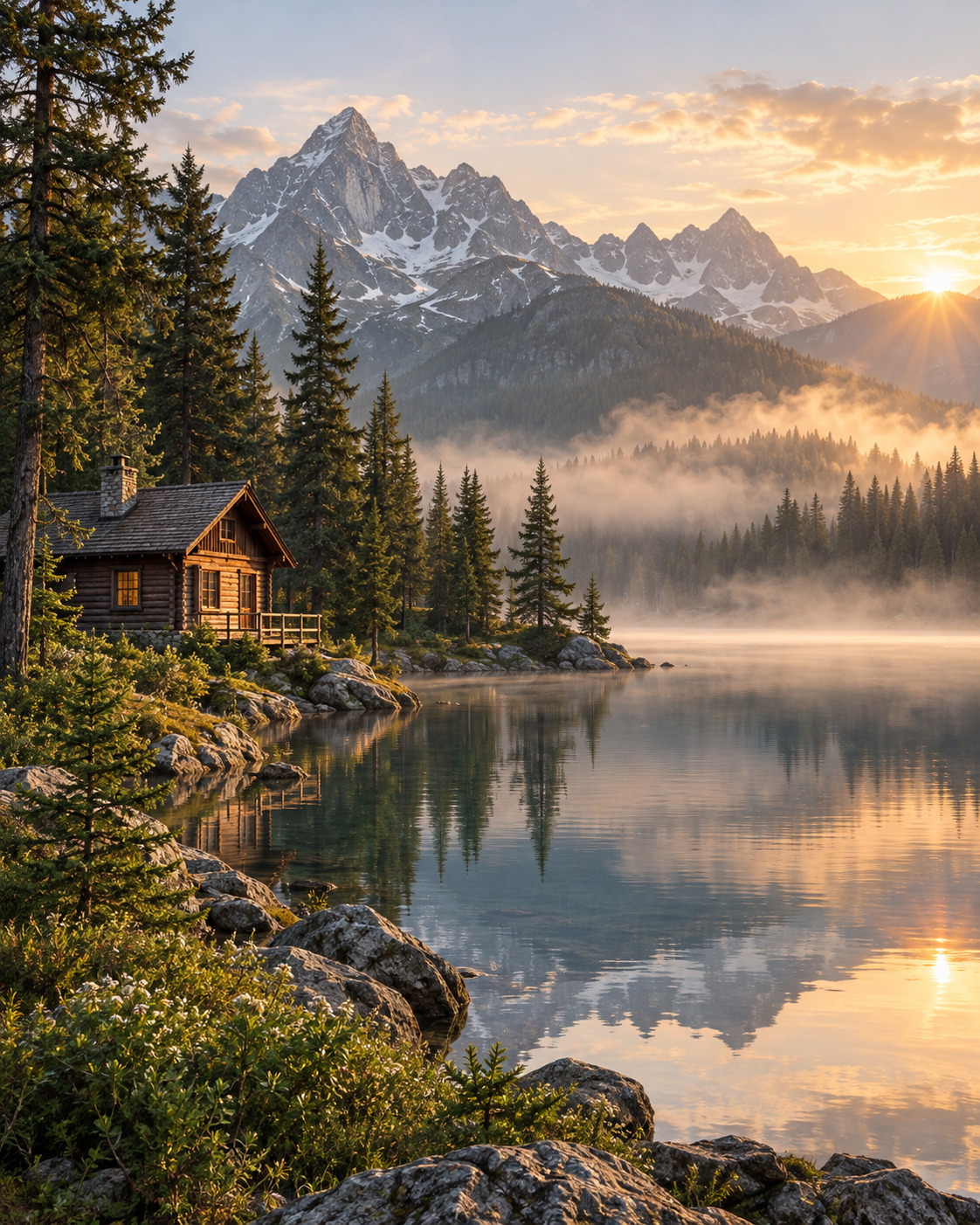
Start with your image
Start with your largest original. Its pixel dimensions determine how much enlargement your chosen print size needs.
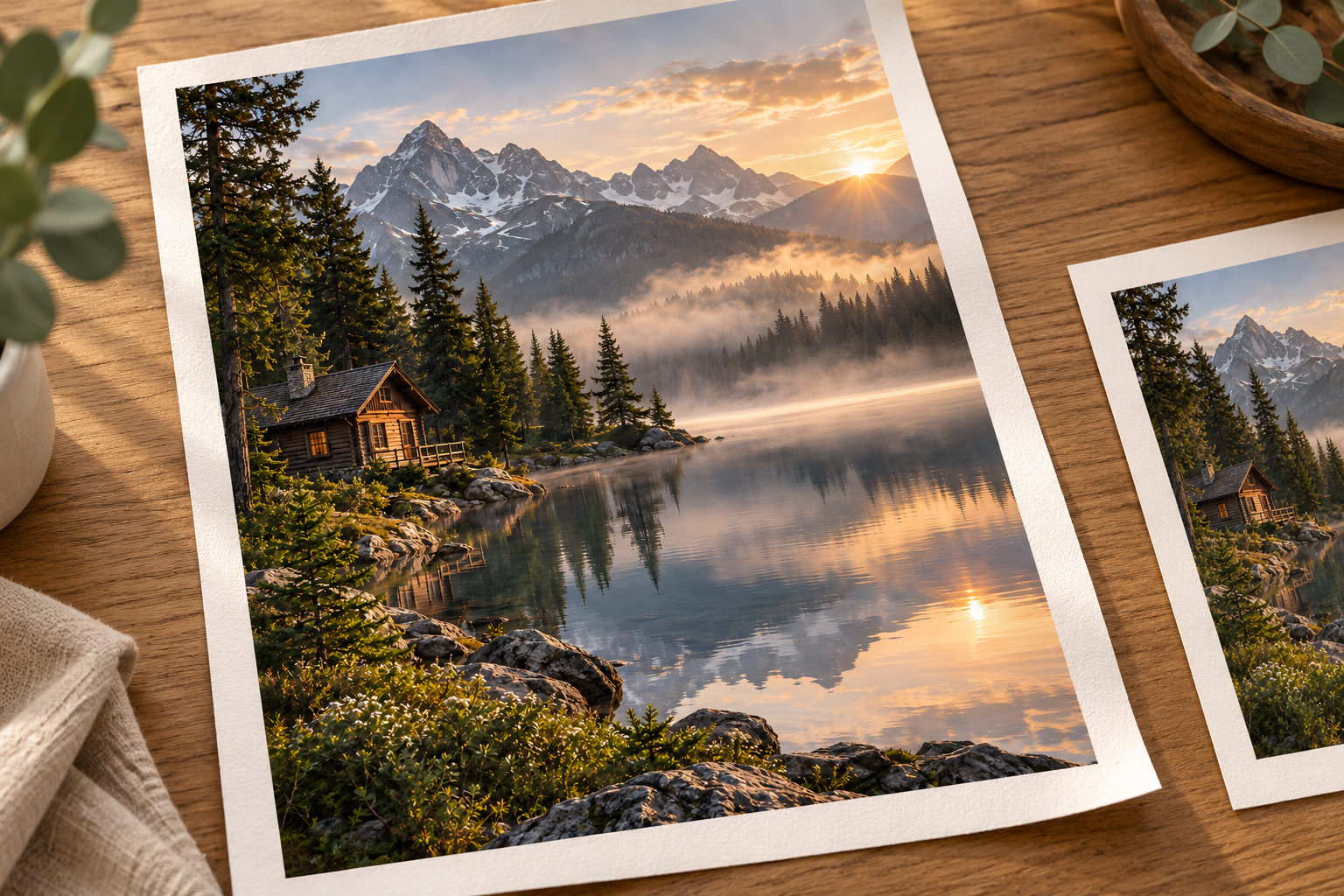
Paper prints
Plan an unframed poster or paper print using the finished dimensions. Your print lab handles the paper, ink, and physical output.
AI-created display mockups illustrate possible uses. They are not physical print proofs or outputs produced by this upscaler.
Photo Enlargement for Printing: Before and After
Compare the original landscape with its actual 2× output. Open the full files to view the cabin, trees, and mountains beyond the preview size.
Check the returned pixel dimensions against your print size and PPI. This is a digital example, not a physical print proof.
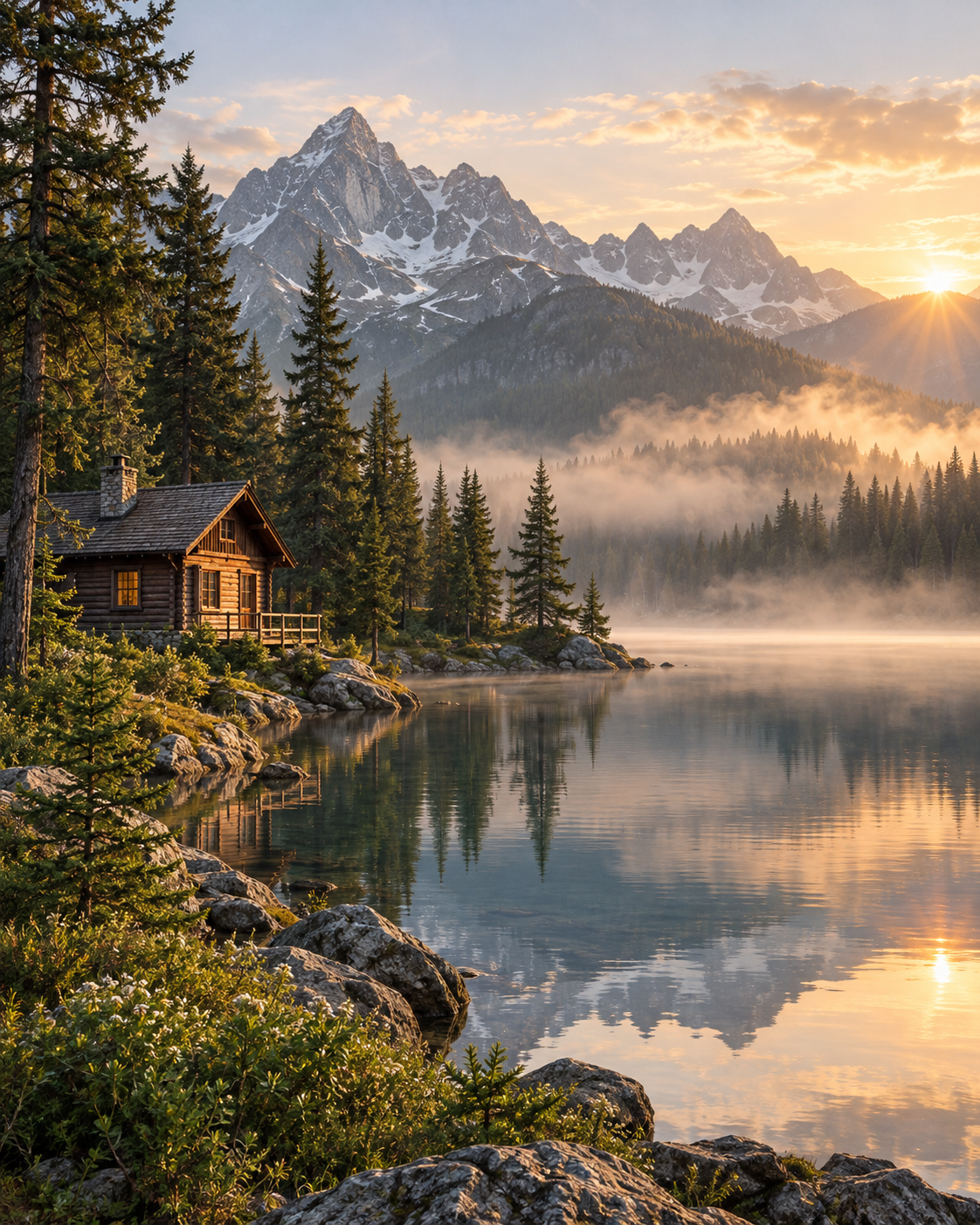 Original input
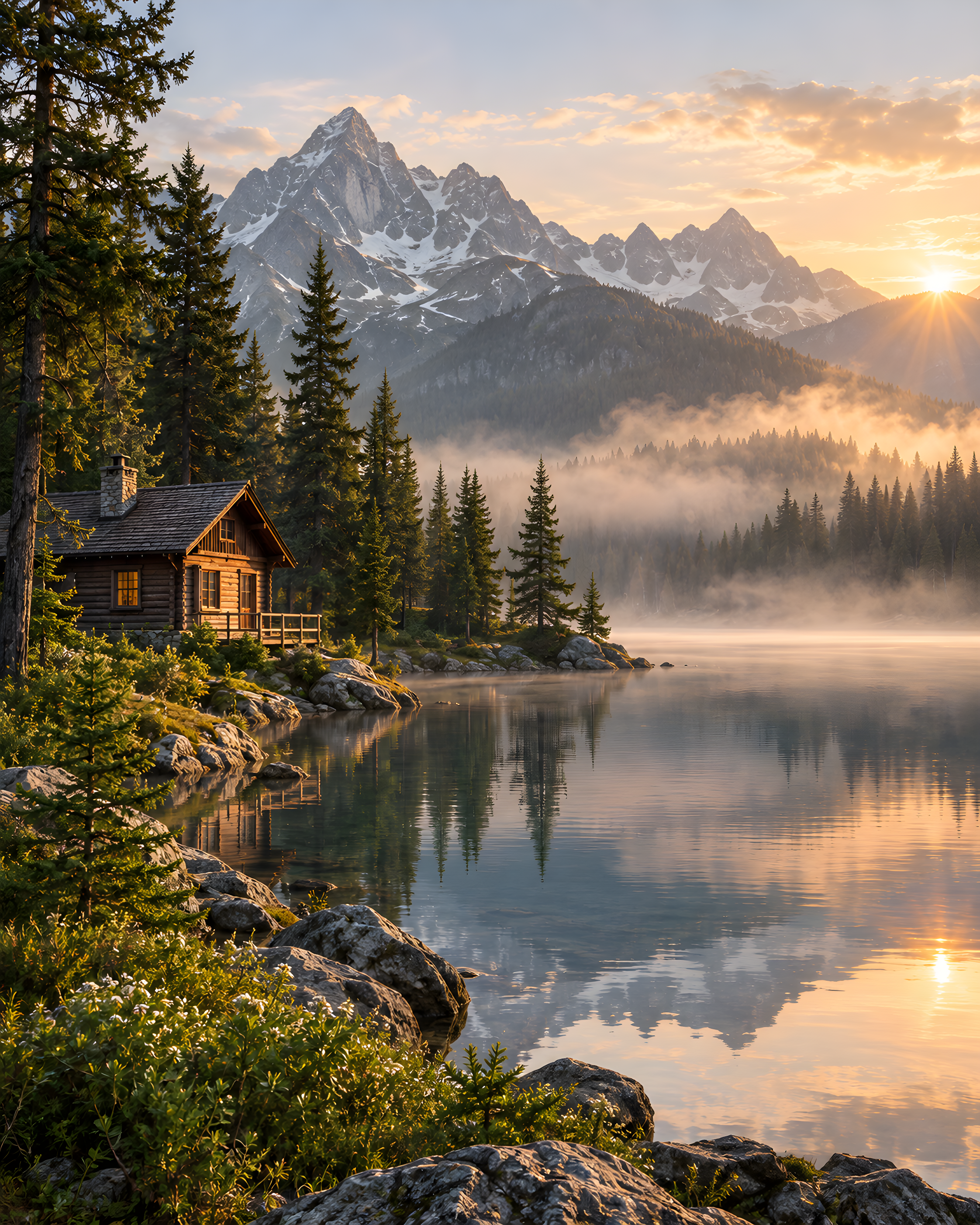 Actual output
AI-created demonstration source, actually processed with Real-ESRGAN at 2×, face enhancement off. Open the files to inspect detail. Results vary with the source and settings.
Pixels Needed for Common Print Sizes at 300 PPI
Use these targets to plan a photo print, poster, or wall artwork. They describe the pixels needed after cropping; your printer may recommend a different PPI.
| Finished size | Pixel target |
|---|---|
| 4 × 6 in | 1200 × 1800 |
| 8 × 10 in | 2400 × 3000 |
| 12 × 16 in | 3600 × 4800 |
| 18 × 24 in | 5400 × 7200 |
How to Enlarge a Photo for Printing
Set your print size
Enter the finished width, height, and your printer’s recommended PPI in the calculator. It converts your size into a pixel target.
Upload and choose a factor
Upload your largest photo. Compare its source pixels with the target, then apply the suggested available scale. Keep the original if it already has enough pixels.
Download and fit your layout
Download the enlarged photo and place it in your print layout. A different aspect ratio needs cropping or borders; use the final crop to judge resolution.
Make a test print
For a large or important order, print a small crop at the final scale first. This lets you judge detail and color on the paper you plan to use.
Explore other tools
Before you start
Photo Printing and Upscaling FAQs
Answers about print sizes, pixel resolution, cropping, and DPI.
How do I upscale an image for printing?
Find the largest original, calculate the pixel target for your print size, and use an available enlargement in the workspace. Download the result, verify its dimensions, and inspect the final crop before ordering.
Is 300 PPI the same as 300 DPI?
PPI describes image pixels per inch at a given print size. DPI describes printer dots. Print services sometimes use DPI when discussing image resolution, so follow the exact file specification they provide.
Can I print a low-resolution photo as a large poster?
Sometimes, depending on source quality, print size, viewing distance, and the printer’s requirements. Tiny thumbnails and severe blur remain poor sources. Consider a smaller print and order a proof.
Does this tool automatically set the print size or DPI tag?
The calculator gives a pixel target. The workspace enlarges the image using its available settings; it does not set your physical print layout, bleed, color profile, or DPI metadata. Complete those steps in an editor or the print lab’s order flow.
Will my whole photo fit an 8 × 10 print?
Only if the image has the same aspect ratio or you add borders. Cropping a wider or square image removes pixels and content, so check the final crop before judging its resolution.
Can I resize an image for printing in centimeters?
Use Centimeters in the calculator to set a target. After you upload a photo, compare the target with its source pixels and apply a suggested scale. The tool does not export an exact centimeter size, crop the image, or change its DPI metadata.
Start with one image
Upscale Your Photo for Printing
Choose your print size, find the pixel target, and enlarge your photo for the layout you have in mind.
Upscale Your Photo for Printing