
01
Remove Unwanted Objects
Erase distracting people, signs, clutter, or small objects and rebuild the space around them naturally.
Upload a photo and describe the result you want. Change backgrounds, remove distractions, refine portraits, or restyle a scene without learning layers and masks.
Upload a photo, describe the change you want, and prepare your AI edit in one workspace.
Click to upload image or drag image here
Supports JPG, PNG, WEBP formats, max 10MB
The created image result will appear here
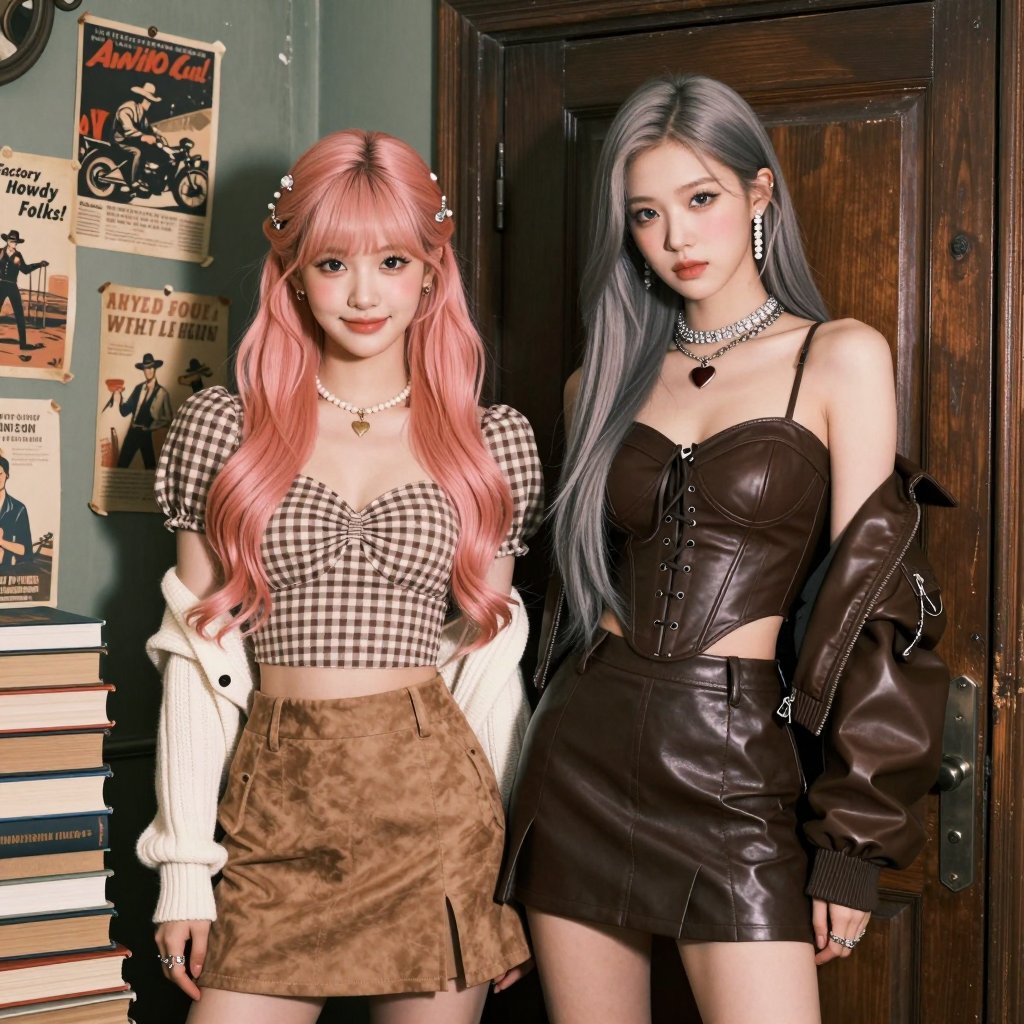
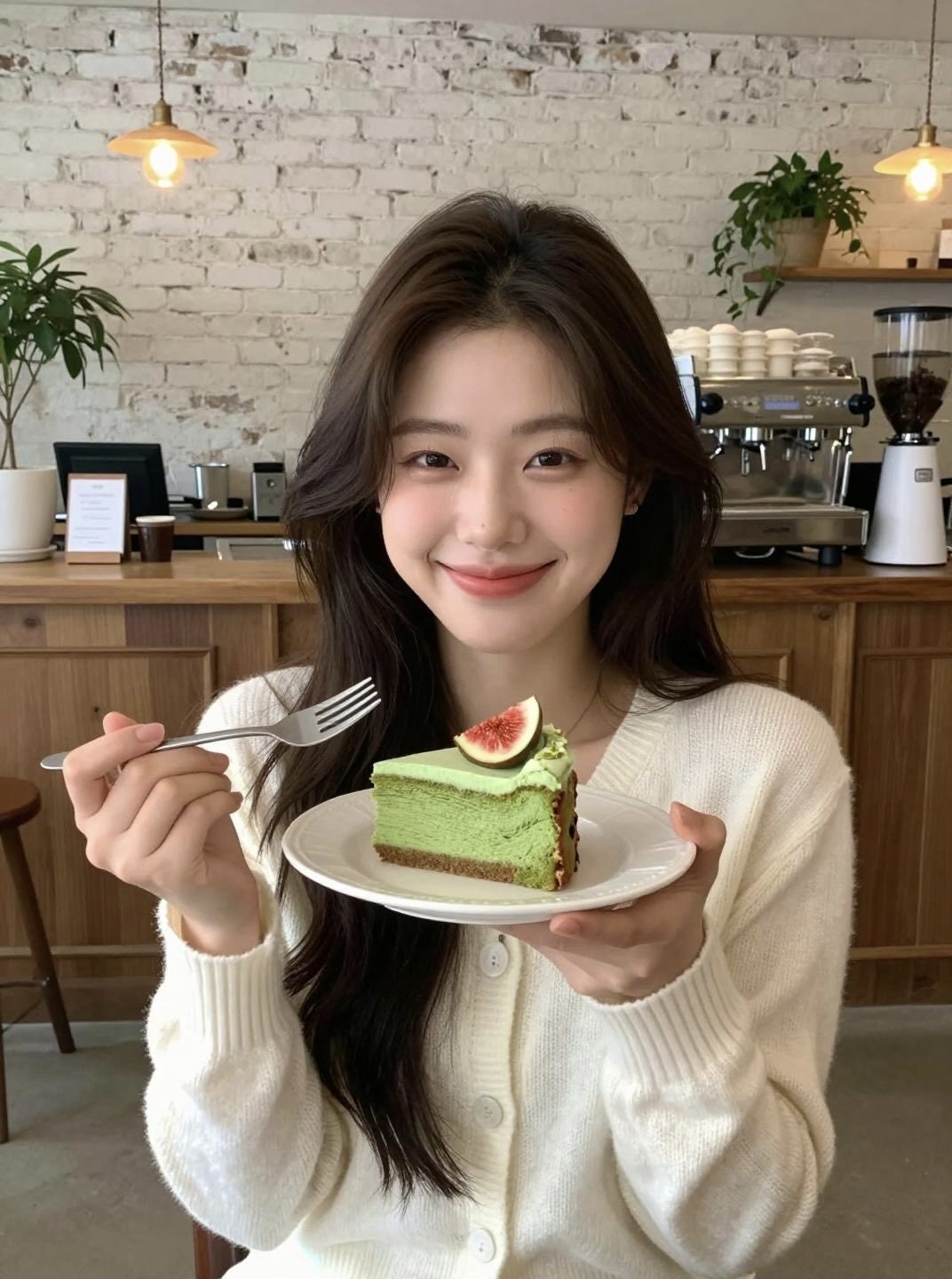
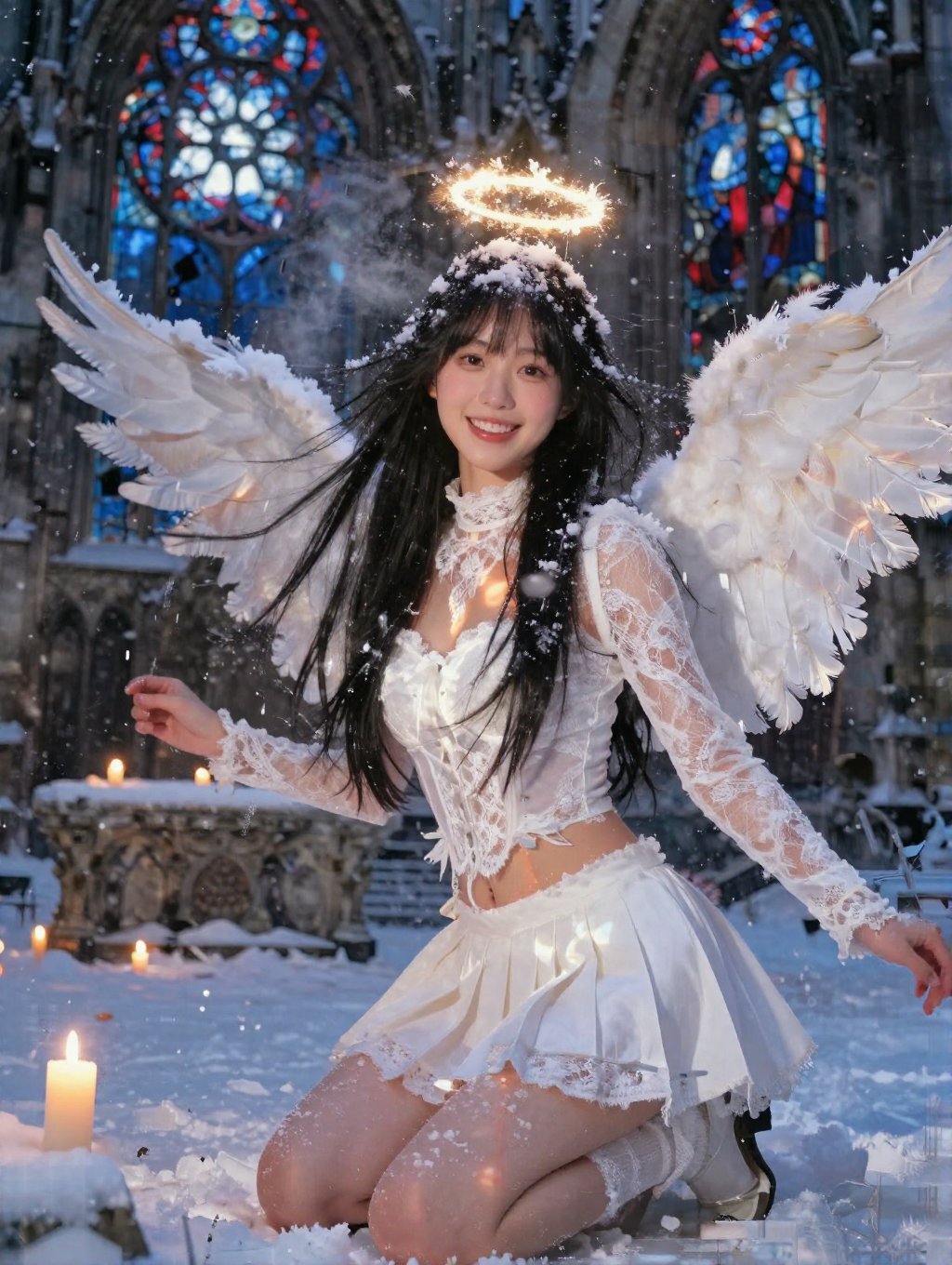
Click image to view full size • Swipe or use arrows to see more
Edit with plain-language prompts
Remove distractions, replace backgrounds, add new elements, adjust lighting, or refine a portrait by describing exactly what you want to change.
Erase distracting people, signs, clutter, or small objects and rebuild the space around them naturally.
Move a subject into a clean studio, lifestyle scene, seasonal setting, or branded environment.
Describe the change in everyday language without drawing a mask or learning complex editing controls.
Insert a prop, change an item, recolor clothing, or replace part of an image while keeping the wider scene coherent.
Correct dull lighting, warm up a scene, create a golden-hour look, or shift the visual atmosphere.
Refine a portrait, clean up distractions, update the setting, and keep the person recognizable.
Real edits from clear instructions
Start with a product photo, portrait, or travel shot and use one specific instruction to create a focused result.
 Product photos01
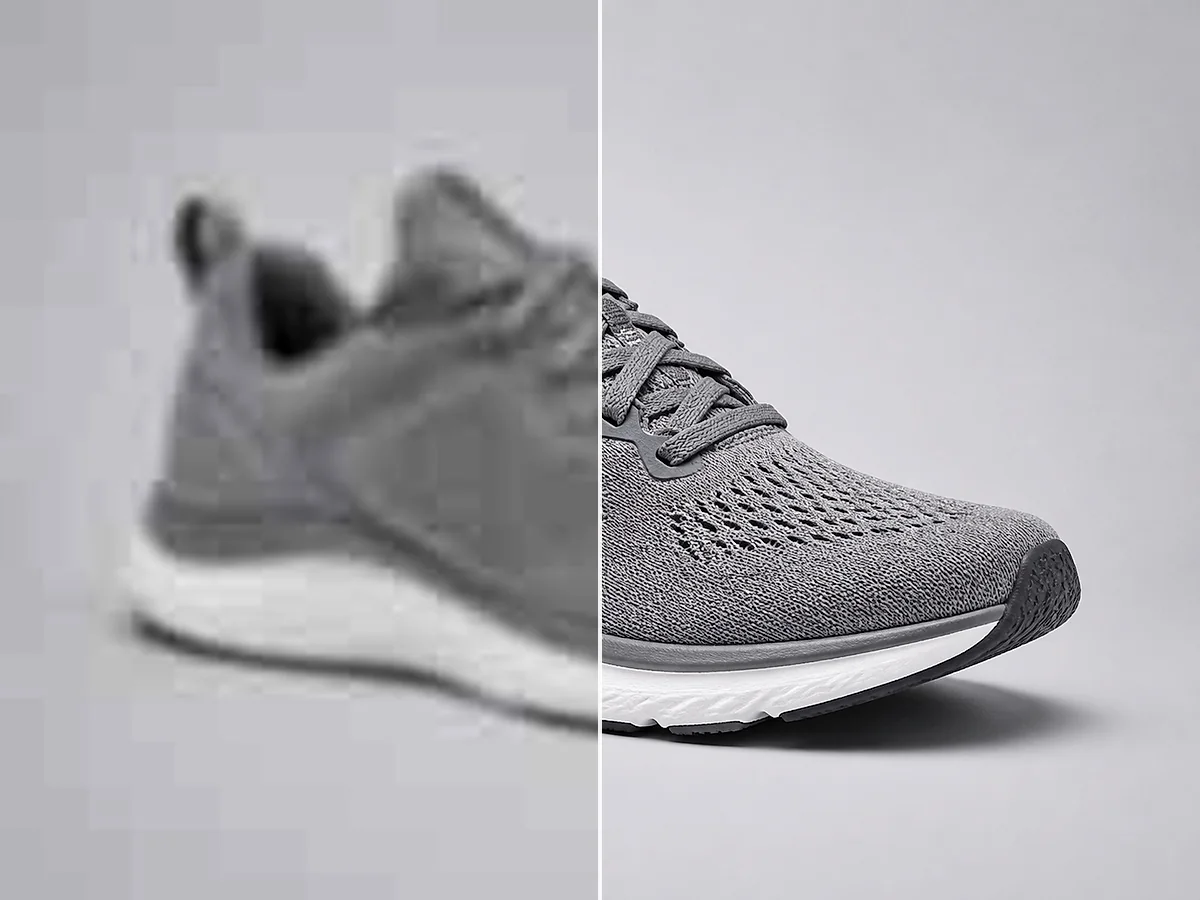
Product photos
Replace the setting and balance the light while keeping the product recognizable.
Replace the background with a warm-white studio wall, add a soft natural shadow, brighten the product evenly, and keep its label, proportions, and material unchanged.
 Portraits02
Portraits
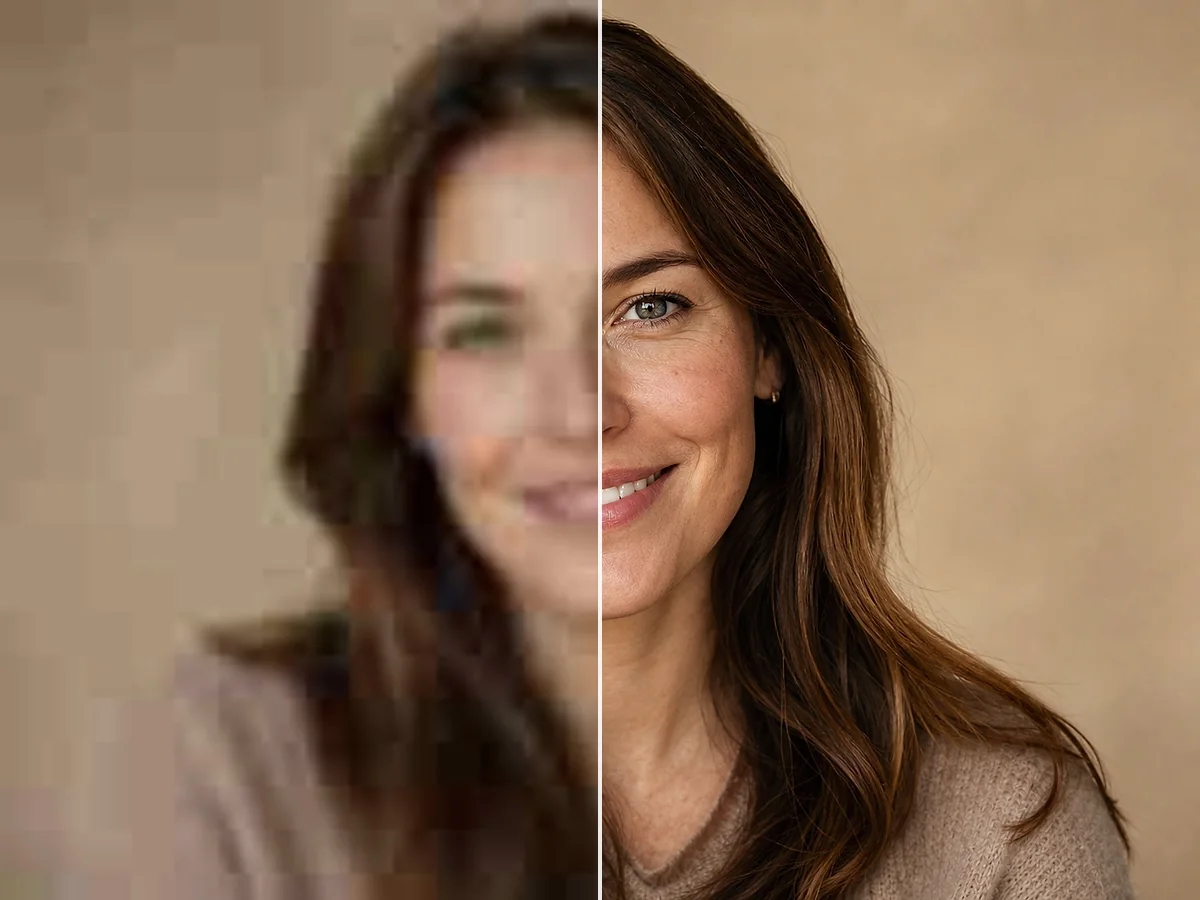
Refresh the background and lighting while preserving the face and expression.
Create a clean professional portrait with a soft neutral background and balanced window light. Preserve the face, expression, hairstyle, pose, and natural skin texture.
 Travel and social03
Travel and social
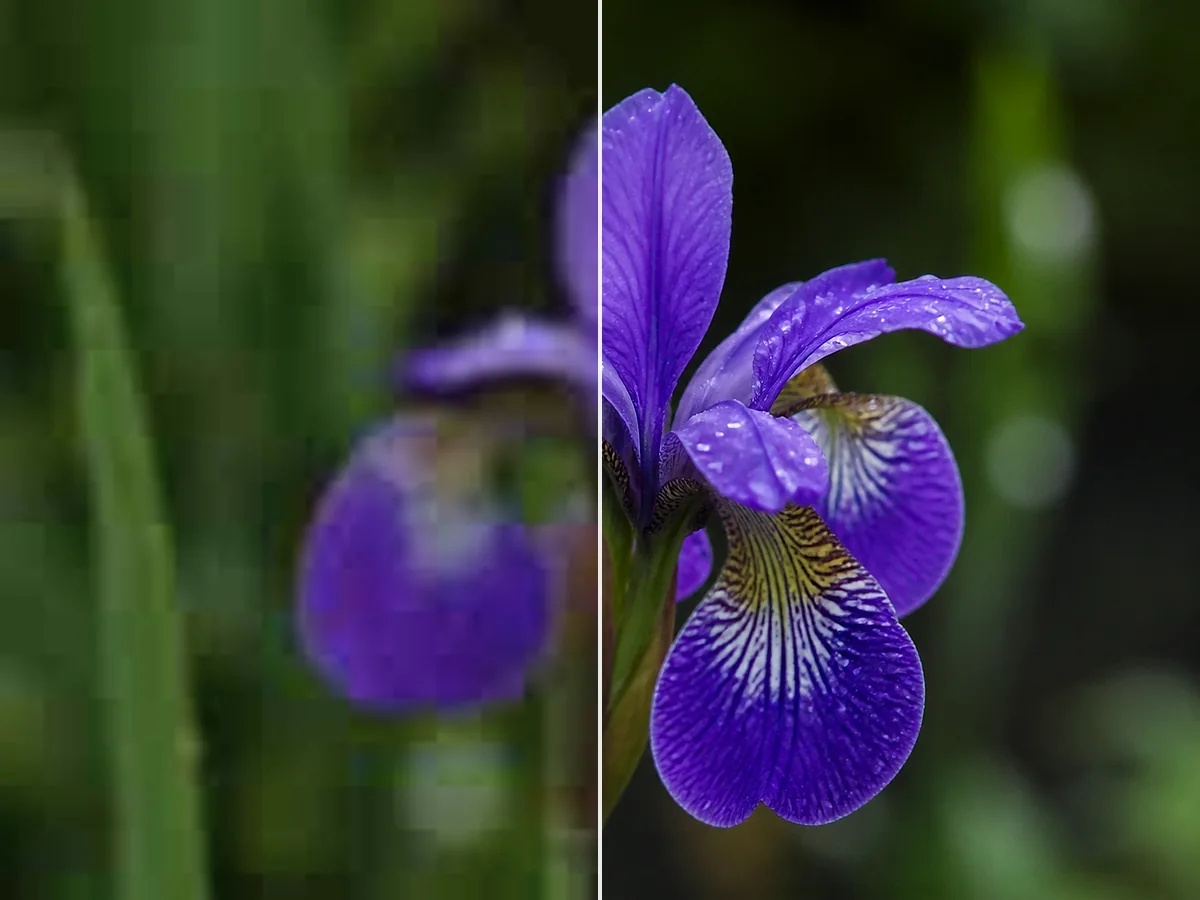
Remove passersby and clutter while keeping the subject and location intact.
Remove the distracting objects in the background, rebuild the scene naturally, add soft late-afternoon light, and keep the main subject and camera angle unchanged.
Upload, describe, and refine
Go from an original photo to a downloadable edit without selections, masks, or complicated controls.
Choose the photo you want to edit. Use a clear source image when identity, product shape, or fine details matter.
Say what should change and what should stay the same. Include the subject, action, setting, color, or lighting you want.
Compare the result with the original, adjust your wording if needed, and download the version that fits your goal.
Less manual work, more control
Describe the result you need, protect the details that matter, and explore new directions without rebuilding every edit by hand.
Manual photo editing
Editing with Upscayl AI
Turn one photo into a finished asset
Prepare polished images for the places you publish without arranging a new shoot for every format or idea.
Try this workflowRemove distracting backgrounds, create consistent scenes, correct lighting, and prepare clean listing images without reshooting every item.
Reframe, restyle, and clean up a strong image for posts, ads, thumbnails, and seasonal campaigns.
Remove temporary clutter, balance lighting, and present rooms more clearly while preserving the actual property.
Explore backgrounds, colors, props, and art direction from an existing photo before committing to another shoot.
Focused tools for the finishing pass
Choose a dedicated workflow when your photo only needs enhancement, background removal, or restoration.
Improve overall clarity, color, lighting, and perceived image quality.
Enhance an imageCreate a clean transparent cutout when you only need to remove the original background.
Remove a backgroundRepair scratches, tears, fading, and missing details in damaged old photos.
Restore an old photoQuestions before your first edit
Find out how prompt-based editing works, which images you can upload, and how to write a more useful instruction.
An AI photo editor changes an existing image using machine learning. A prompt-based editor reads a written instruction, identifies the relevant parts of the photo, and generates a revised version around the requested change.
New users can start with free account credits and try the editing workflow without a credit card. Available credits and processing limits are shown in the product before generation.
Upload your image and write a specific instruction that says what should change. For more consistent results, also mention what should remain unchanged, such as the person, product shape, camera angle, or composition.
Yes. Prompt-based editing can remove people, clutter, signs, props, and other distractions, then reconstruct the surrounding area to match the photo. Results depend on the object size and available background context.
Yes. You can describe a new studio, lifestyle, outdoor, seasonal, or branded background while asking the editor to keep the main subject unchanged.
AI photo editing can help sellers change backgrounds, clean up distractions, test lifestyle scenes, and create campaign variations. Check important product details before publishing an edited image.
Yes. You can improve lighting, replace the setting, remove distractions, or refine presentation. Use a clear, well-lit source image and ask the editor to preserve facial identity for more natural results.
A useful prompt names the subject, the exact change, and the intended look. For example: Replace the background with a softly lit office, keep the person and clothing unchanged, and use natural daylight.
No. The prompt-based workflow is designed for people who want to describe an edit instead of working with manual selections, brushes, layers, and masks.
You can upload up to 8 JPG, PNG, or WebP reference images, with a maximum size of 10 MB per image. Free image edits are resized before upload to reduce traffic and model cost.
Your next edit starts with one sentence
Upload a photo and turn a plain-language idea into a clear editing prompt.
Open the Free AI Photo Editor