
Image Upscaler for Print on Demand
Enlarge artwork for T-shirts, tote bags, and posters.
Upload Image
Add up to 5 images at once.
Click to upload image or drag image here
Supports JPG, PNG, WEBP, ZIP formats, max 20.00MB each
You can select or drag up to 5 images.
Upload files or paste
ONE DESIGN, DIFFERENT PRODUCTS
Artwork for T-Shirts, Tote Bags, and Posters
One flat design can become the source for several products. The shirt and tote scenes show placement ideas; the original artwork can also be sized for a poster layout.
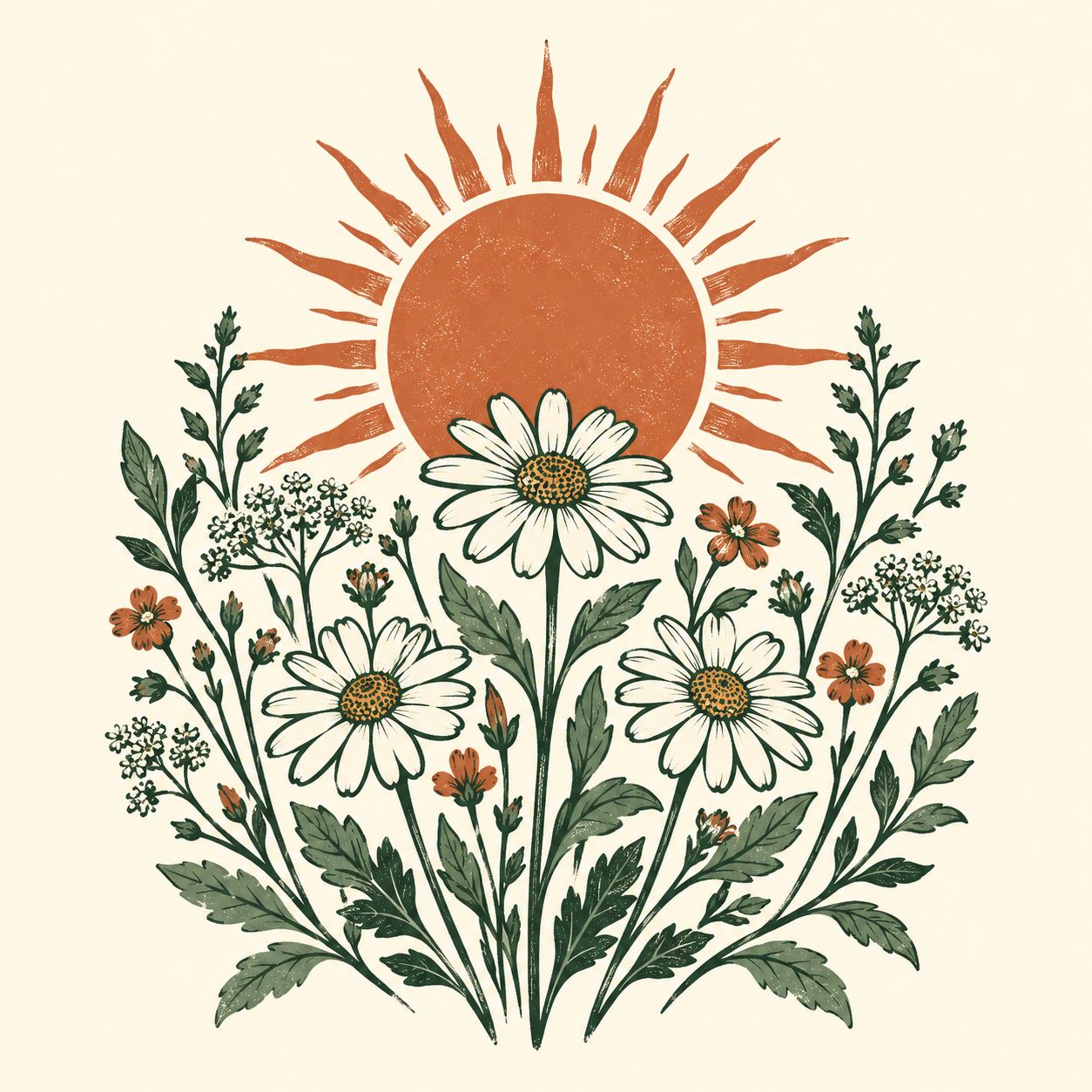
Start with the original artwork
Enlarge the flat design for a poster layout or a merchandise template. Use the artwork file itself as your source.
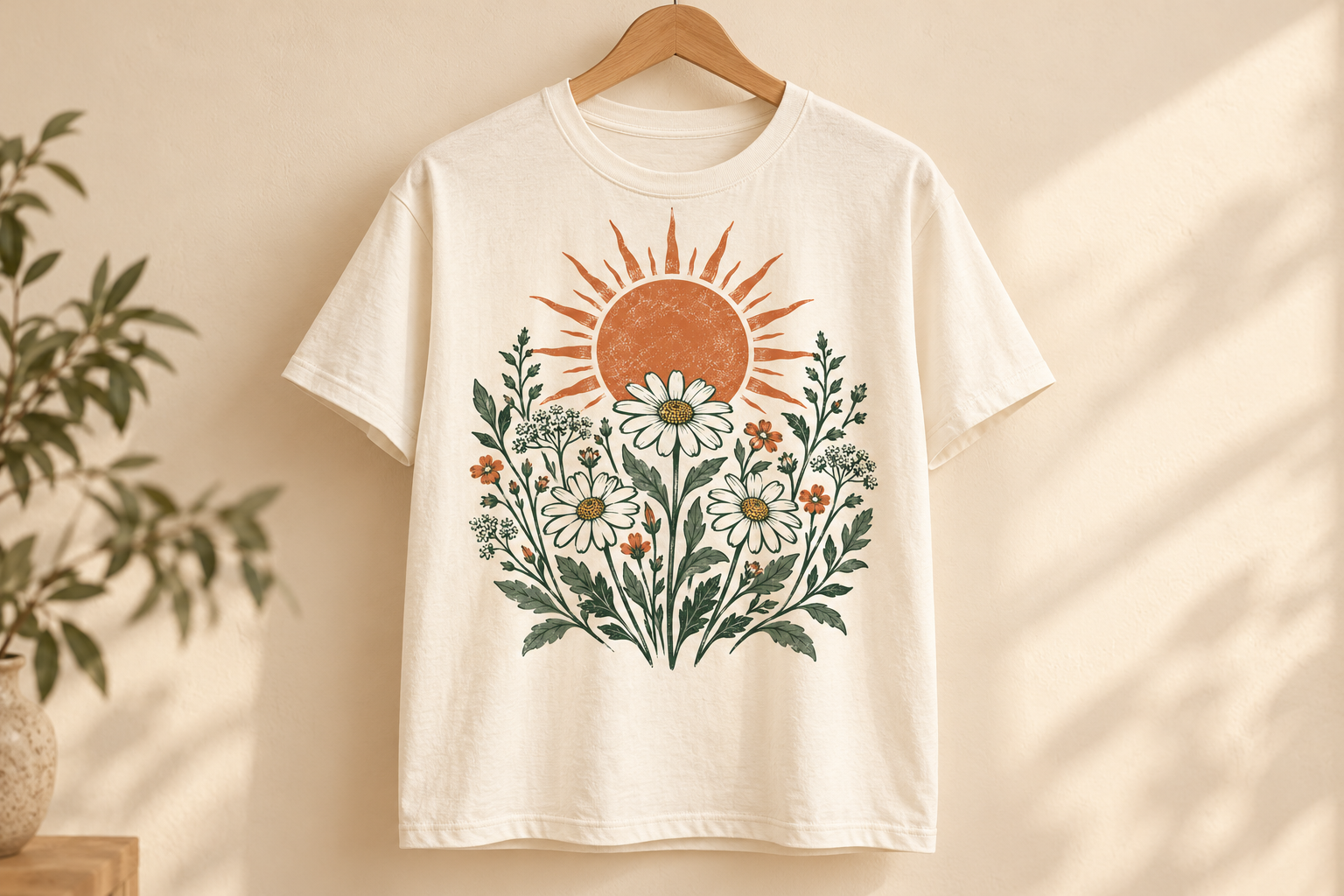
Size a T-shirt graphic
Match the enlarged artwork to the shirt’s printable area. The template sets the placement and space around your design.
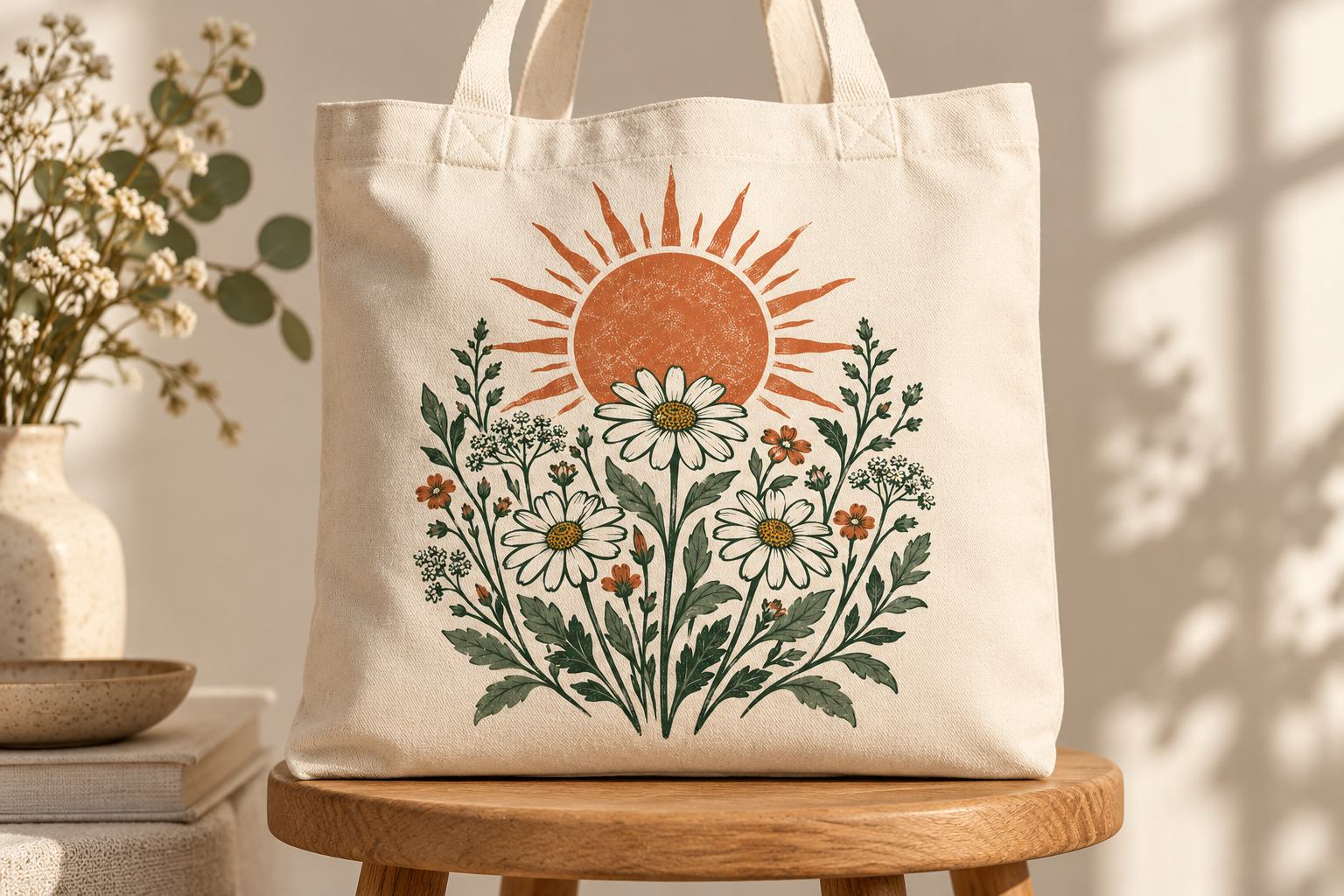
Adapt the design for a tote bag
A tote may need a different print size from a shirt. Calculate its pixel target before placing the same design.
AI-created application mockups, not print proofs. This tool enlarges your uploaded image; it does not generate product mockups.
Artwork Upscaling: Before and After
See the flat botanical design beside its actual 2× output. Compare the outlines and ink texture, or open both files at full size.
This comparison shows raster artwork enlargement, not a garment mockup or a physical print proof.
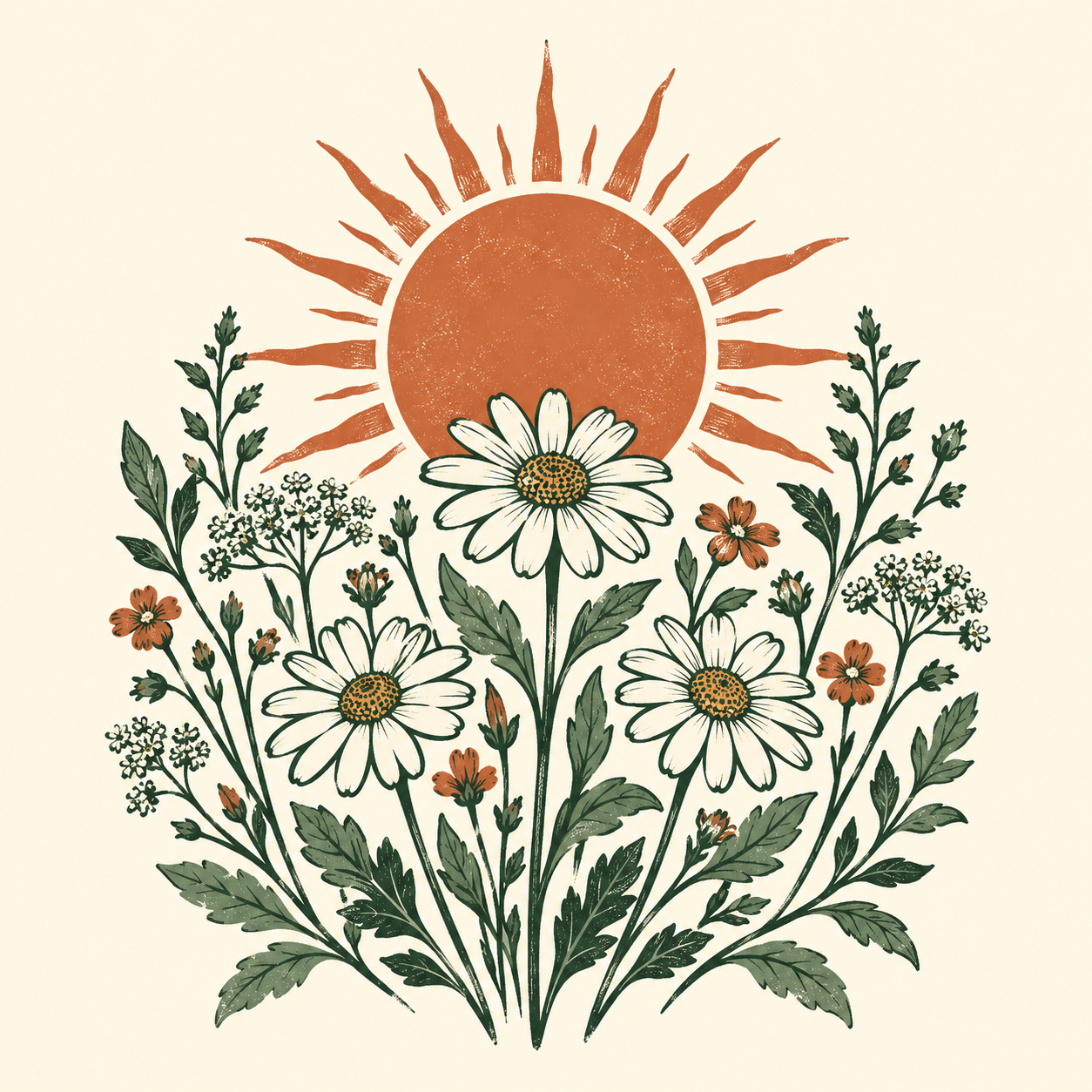 Original input
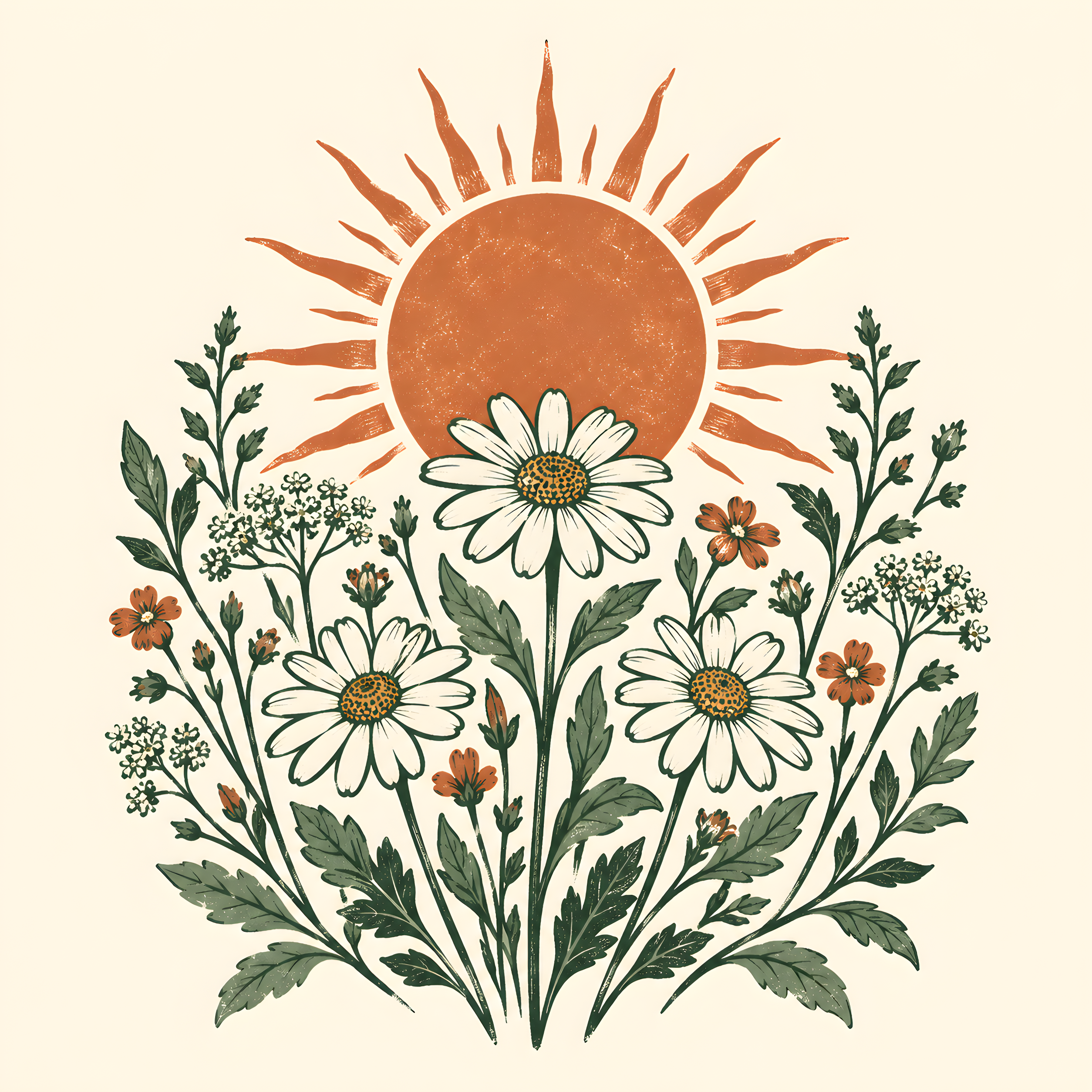 Actual output
AI-created demonstration source, actually processed with Real-ESRGAN at 2×, face enhancement off. Open the files to inspect detail. Results vary with the source and settings.
How to Upscale Images for Print on Demand
Start with the original design and the pixel target for your product. The POD image upscaler creates a larger raster file for the next step in your print workflow.
1. Choose your source
Upload the flat design
Use the largest artwork export you have, rather than a photo of a finished product. Get the print-area dimensions from your supplier’s template.
2. Add pixels
Choose an upscale factor
Select an available factor to bring your artwork closer to the target dimensions. Start the upscale, then compare the enlarged design with the source.
3. Use the larger file
Download for your template
Place the downloaded artwork into the supplier’s template. Finish placement, bleed, and safe zones in your editor or the supplier’s design tool.
Calculate Pixels for Your Product’s Print Area
Multiply the print area’s width and height in inches by the requested PPI. These 300 PPI examples show the calculation for a garment graphic and a poster.
Calculate another print size12 × 16-inch artwork area
3600 × 4800 px
A 12 × 16-inch print area at 300 PPI needs 3600 × 4800 pixels. Use the printable area, rather than the shirt’s overall dimensions.
18 × 24-inch poster
5400 × 7200 px
An 18 × 24-inch poster at 300 PPI needs 5400 × 7200 pixels before any extra bleed required by the supplier.
These are arithmetic examples, not guaranteed outputs or universal provider requirements.
Upscaling Illustrations, Text, and Transparent Artwork
- Raster illustrations and paintings
- Enlarge a raster export when your illustration needs more pixels for the print area. Compare linework, brush texture, and gradients with the source.
- Text-heavy designs and logos
- Export again from the original vector or editable file when possible. AI can alter letters and small brand marks.
- Transparent garment graphics
- Check the downloaded file’s format, alpha channel, and edge pixels. Do not assume every processing mode preserves transparency.
- Product mockups
- A mockup shows how an item might look. Upload the original artwork for production instead of enlarging a photo of the mockup.
Explore other tools
Before you start
Print-on-Demand Image Upscaler FAQs
Answers about artwork files, supplier templates, text, and transparency.
How do I upscale an image for print on demand?
Download the template for the specific product, calculate the required pixel dimensions, and enlarge the original artwork in the workspace. Inspect the result and place it into the template before ordering a sample.
Will upscaling make any design print-ready?
No. Pixel dimensions are only one requirement. File format, color, transparency, bleed, safe zones, artwork rights, and the quality of the original also matter.
Can I use this for Printful or Printify artwork?
You can enlarge an authorized design and then prepare it for your chosen provider. Check that provider’s current requirements for the exact product. This page has no provider integration or affiliation.
Can I upscale AI-generated artwork for merchandise?
You can enlarge a raster image, but review details and check that you have the rights needed for commercial use. Upscaling does not grant licensing rights or remove restrictions.
Will text and transparent backgrounds stay unchanged?
That is not guaranteed. AI can change small lettering, and output behavior can vary by mode. Inspect text and the downloaded alpha channel; use your original editable design for exact typography.
Does the tool create a vector or a print-on-demand mockup?
No. Enlargement creates a larger raster image. Use a vector editor for scalable paths and a separate mockup workflow to show the product to customers.
Start with one image
Upscale Your Artwork
Give your design more pixels for its next print area. Upload the original artwork and choose an upscale factor.
Upscale Your Artwork